A phone today is a wallet, a bank branch, an ID card and a diary. If someone takes it, or fools you into installing the wrong app, the damage can be much larger than the price of the handset. The good news is that most of the protection comes from a small number of settings, and you can check them in about five minutes.
The menu names below vary between brands (Samsung, Xiaomi, Vivo, OnePlus, Pixel, iPhone) and between software versions, so use the search box in Settings to find each item.
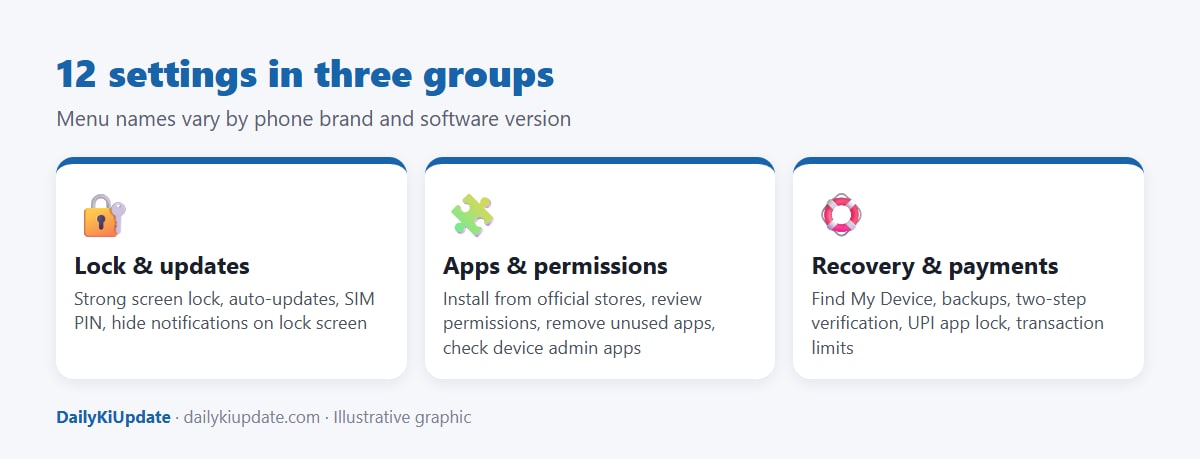
A. Lock and update
1. Use a strong screen lock
Use a 6-digit PIN at minimum, or a password. Avoid birth years, 123456 and patterns that are easy to see. Add fingerprint or face unlock for convenience. Many thefts involve watching you type your PIN first, so shield the screen in public.
2. Turn on automatic updates
Security updates fix holes that attackers actively use. Turn on automatic system and app updates. If your phone no longer receives security updates, consider replacing it when you can, especially if you use it for banking.
3. Hide sensitive notifications on the lock screen
Set the lock screen to hide the content of messages. Otherwise OTPs show up on a locked phone that someone else is holding.
4. Set a SIM PIN
A SIM lock stops a thief from putting your SIM in another phone to receive OTPs. Change the default PIN first, and remember it, because entering it wrongly three times locks the SIM.
B. Apps and permissions
5. Install apps only from the official store
Do not install APK files forwarded on WhatsApp or sent by "bank officers", "courier staff" or "customer care". Fake apps often ask for screen sharing or accessibility access, and then drain accounts. On Android, keep "install unknown apps" turned off for every app.
6. Review permissions
Open Settings, then Privacy or Permission manager. Look at which apps can access your camera, microphone, location, contacts, SMS and files. A torch or wallpaper app does not need your SMS or contacts. Remove permissions or uninstall the app.
7. Remove old apps and check admin apps
Uninstall apps you no longer use. On Android, check Device admin apps and Accessibility settings for anything unfamiliar. A suspicious app with these powers is a red flag. Keep Google Play Protect on.
C. Recovery and payments
8. Turn on Find My Device or Find My
This lets you locate, lock or erase a lost phone. Make sure your Google or Apple account is signed in and location is enabled. If you lose the phone, also block the handset through Sanchar Saathi.
9. Back up your data
Turn on Google backup or iCloud backup for photos, contacts and messages. A backup makes losing a phone an inconvenience rather than a disaster.
10. Use two-step verification everywhere that matters
Turn it on for your Google or Apple account, email, WhatsApp and banking. Prefer an authenticator app or a passkey to SMS codes where available.
11. Lock your UPI and banking apps
Use the app lock inside your payment apps, in addition to the phone lock. Set sensible daily transaction limits. Never share your UPI PIN, since a PIN is only needed to send money, never to receive it. If someone asks you to "enter your PIN to receive a refund", it is a scam.
12. Be careful with links, calls and screen sharing
Do not click links from unknown senders, and do not install screen-sharing or remote-access apps at anyone's request. If a caller claims to be from a bank, police or courier, hang up and call the official number yourself. See how scammers pressure victims in our guide to the digital arrest scam.
If your phone is stolen: first-hour plan
- Call your mobile operator to block the SIM, and get a duplicate SIM.
- Use Find My Device or Find My to lock the phone and show a contact number on the lock screen.
- Call your bank to block UPI and cards, or disable UPI from the bank's app on another device.
- Change passwords for email, Google or Apple ID and social media from another device. Our guide to recovering a hacked Instagram or WhatsApp account covers the next steps.
- File a police complaint and use the IMEI to block the phone through CEIR.
Frequently asked questions
Is iPhone safer than Android?
Both can be secure if updated and configured properly. Most real-world losses come from scams and weak locks, not the operating system.
Do I need an antivirus app?
For most people, built-in protection (Google Play Protect, Apple's app review) plus good habits is enough. Avoid unknown "cleaner" or "booster" apps.
Is a fingerprint lock enough?
Use it with a strong backup PIN. The PIN protects you if the fingerprint fails, and it is also asked for after a restart.
Should I use public Wi-Fi for banking?
It is better to avoid it. Use your mobile data for sensitive transactions.
How often should I review permissions?
Every few months, and whenever you install a new app.