Most of us have a few passwords we reuse, a few that we forget and a notebook where we write the rest. Attackers know this, and the most common way accounts are stolen, through fake login pages and leaked password lists, targets exactly this weakness. Passkeys are designed to remove the password from the picture.
With a passkey, you sign in to a website or app by unlocking your phone or laptop with your fingerprint, face or screen lock. There is nothing to type, nothing to remember and nothing for a scammer to trick you into giving away.
How a passkey works, in simple terms
A passkey is based on a pair of cryptographic keys, a standard developed by the FIDO Alliance and the World Wide Web Consortium (W3C) and supported by Google, Apple and Microsoft. When you create a passkey for a website:
- Your device creates two keys: a public key, which is sent to the website, and a private key, which never leaves your device.
- When you sign in, the website sends a challenge that only the private key can sign.
- Your device asks you to confirm with your fingerprint, face or screen lock, then signs the challenge.
- The website checks the signature against the public key and lets you in.
Your fingerprint or face data stays on your device. The website never sees it.
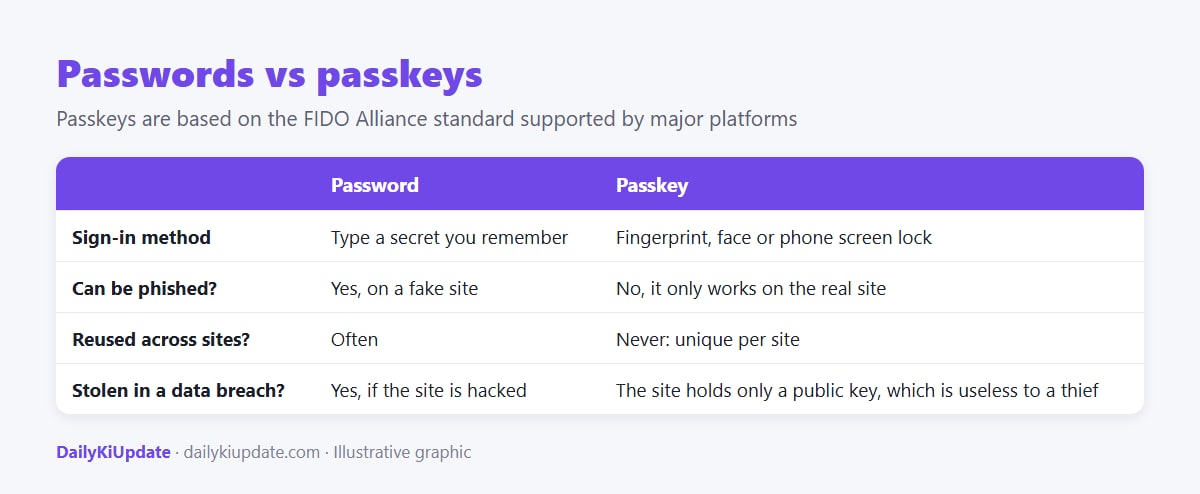
Why passkeys are safer
- Phishing-resistant. A passkey only works on the genuine website it was created for. A fake page cannot ask you for it, because there is nothing to type.
- No reuse. Each site gets its own key pair.
- A leak does not hurt you. If a website is hacked, the attacker only gets public keys, which cannot be used to sign in.
- Faster. No typing, no OTP waiting, no password reset emails.
How to set up a passkey on a Google account
- On your phone or computer, go to your Google Account and open Security.
- Under How you sign in to Google, choose Passkeys (or go to g.co/passkeys).
- Select Create a passkey and confirm with your fingerprint, face or screen lock.
- The next time you sign in, you can choose the passkey instead of typing your password.
On an Apple device
On an iPhone or Mac, when a website or app offers to create a passkey, choose it and confirm with Face ID, Touch ID or your device passcode. The passkey is saved to iCloud Keychain and syncs across your Apple devices that use the same Apple ID. Other platforms and password managers also support passkeys, and the menu names change by version.
Which sites and apps support passkeys?
Support is growing. Many large services including Google, Microsoft, Apple, WhatsApp, PayPal and several Indian banks and apps now offer it, though availability differs. Look in the security or sign-in settings of an app for "passkey" or "sign in with fingerprint or face". Where it is not offered, a strong unique password with two-step verification is the next best choice.
What if I lose my phone?
This is the right question to ask. Passkeys are usually synced through a cloud account such as your Google account, iCloud Keychain or a password manager. If you lose your phone:
- Sign in on a new device with your Google or Apple account and your recovery method, and your passkeys are restored.
- Keep your recovery options current: a recovery email, a recovery phone number and, for Google, backup codes.
- If your phone was stolen, immediately lock or erase it remotely using Find My Device or Find My, and block the handset through Sanchar Saathi.
Limits and risks
- Your phone's screen lock becomes the key. A short PIN that someone watches you enter is a risk. Use a longer PIN or biometrics.
- If you share a device, anyone who can unlock it may access accounts saved there.
- Not every site supports passkeys, so you will keep some passwords for now. Use a password manager and two-step verification for those.
- Account recovery is only as strong as your recovery method. Treat it carefully.
Frequently asked questions
Are passkeys safer than passwords?
Yes, mainly because they resist phishing and cannot be reused or leaked from a website's database.
Do I still need a password?
For sites that do not support passkeys, yes. Many accounts still keep a password as a fallback.
Are passkeys the same as a fingerprint login?
Not exactly. The fingerprint just unlocks the passkey on your device. The passkey is the cryptographic key.
Can I use a passkey on someone else's computer?
Often yes, by scanning a QR code with your phone and approving there. Your passkey stays on your phone.
Can passkeys be hacked?
No security is perfect, but stealing a passkey generally requires taking over your device or your cloud account, which is much harder than phishing a password.