Ask people what eats their day and the answer is rarely "hard thinking". It is the small repeated stuff: copying data between apps, writing the same email, taking notes in meetings, sorting tasks, remembering follow-ups. None of it is difficult, and all of it adds up.
Automation and AI can take a lot of that off your plate, and you can start without paying. Here are 10 free AI and automation tools that can save you time every day, with a real example for each, plus advice on how to start without over-engineering.
Last updated: October 2026. Free plans in this category are limited and change often, usually in the number of tasks, runs or minutes. I describe typical limits in general terms. Check the current plan before building anything important on top of it.
How to decide what to automate
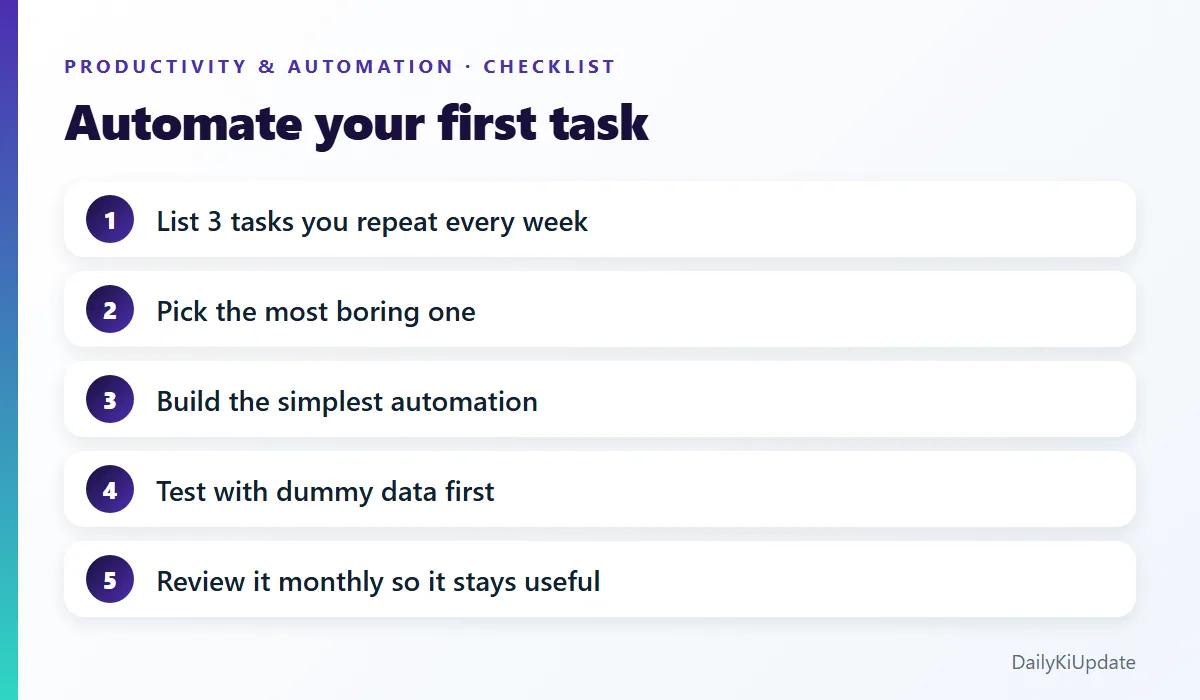
Do not automate for the sake of it. A good candidate for automation is a task that is:
- Repeated at least weekly,
- Rule-based (the steps are always roughly the same), and
- Boring enough that you would happily never do it again.
Write down the three tasks you repeat most, then pick the most annoying one. Start there.
Workflow automation (connect your apps)
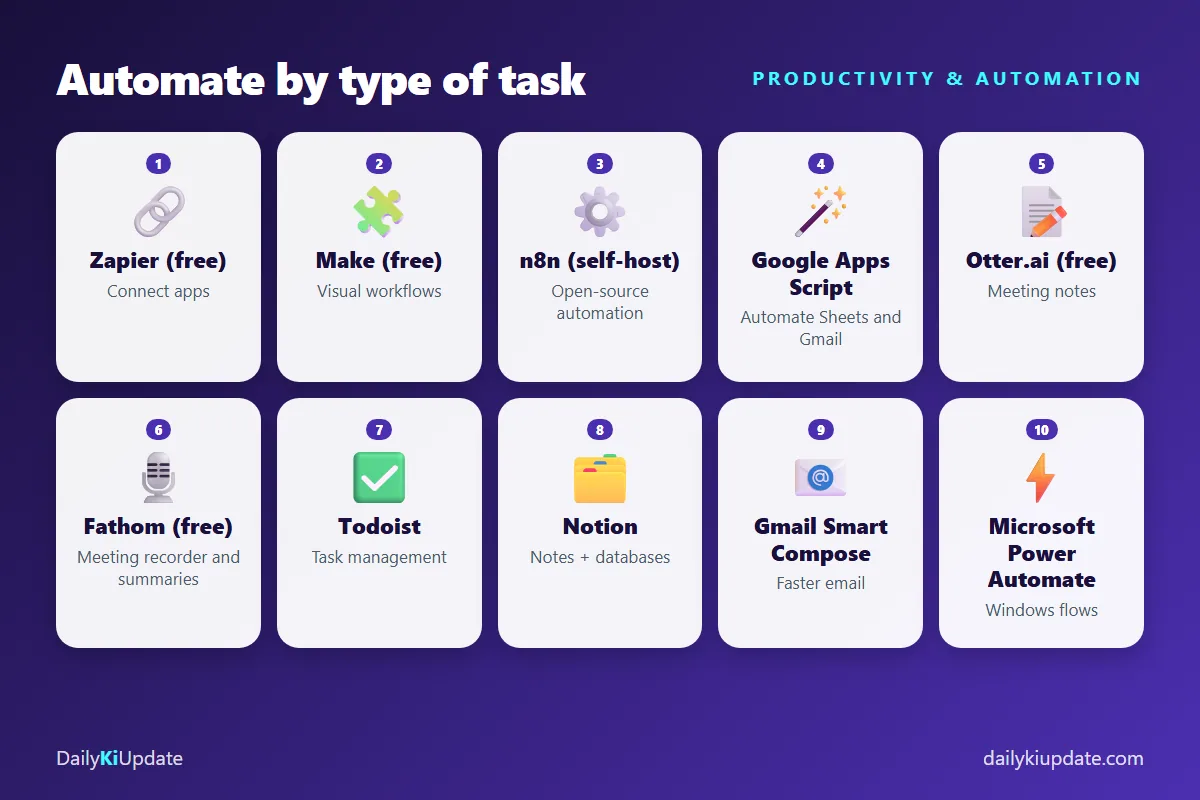
1. Zapier (free plan)
What it does: connects thousands of apps with "if this, then that" workflows called Zaps.
Example: when a new row is added to a Google Sheet, send a Slack message and create a task in Todoist. Or save Gmail attachments to Google Drive automatically.
Free-plan catch: a limited number of tasks per month and simpler, mostly single-step workflows. Multi-step flows and some premium apps need a paid plan.
2. Make (formerly Integromat)
What it does: a visual canvas where you drag modules and connect them into multi-step scenarios.
Example: collect form submissions, add them to a spreadsheet, send a confirmation email and notify you on chat.
Free-plan catch: a monthly operations limit and fewer active scenarios. It has a steeper learning curve than Zapier, but more flexibility for complex flows.
3. n8n (self-hosted)
What it does: an open-source workflow tool with a visual editor and hundreds of integrations. You can host it yourself.
Example: a workflow that watches an RSS feed, summarises each new item with an AI model and posts it to a channel.
Catch: self-hosting needs some technical comfort and you are responsible for updates and security. There is also a hosted version, which is paid. Read the licence to confirm your use is allowed.
4. Google Apps Script
What it does: lets you write small scripts (in JavaScript) that automate Google Sheets, Docs, Gmail, Calendar and Drive. It is free with a Google account, within daily quotas.
Example: a script that emails you every Monday with the tasks from a spreadsheet that are due this week.
function mondayReminder() {
  const sheet = SpreadsheetApp.getActiveSpreadsheet().getSheetByName("Tasks");
  const rows = sheet.getDataRange().getValues().slice(1);
  const due = rows.filter(r => r[2] === "This week").map(r => "- " + r[0]);
  if (due.length) {
    MailApp.sendEmail(Session.getActiveUser().getEmail(),
      "Tasks due this week", due.join("\n"));
  }
}
Then add a time-based trigger in Apps Script to run it every Monday morning. Start with test data, and be careful with scripts that send email.
5. Microsoft Power Automate
What it does: automates tasks across Microsoft apps like Outlook, Teams, SharePoint and Excel, and some other services. There is a desktop flow option for repetitive work on a Windows PC.
Example: save every email attachment with "invoice" in the subject to a OneDrive folder.
Catch: which features are free depends on your account (personal, work or school), and premium connectors are paid. If you use Windows, our Windows 11 tips and tricks pair nicely with it.
Meeting notes and AI summaries
6. Otter.ai (free plan)
What it does: records and transcribes meetings and creates summaries and action items.
Example: after a call you get a searchable transcript and a short summary to share.
Free-plan catch: a limited number of transcription minutes per month and per meeting.
7. Fathom (free recorder)
What it does: records and summarises video calls on supported platforms and highlights key moments.
Example: get a summary and action items right after a client call.
Catch: always tell participants you are recording, and get consent where the law or your workplace requires it. Check how your meeting data is stored, and do not use it for confidential calls without approval.
Tasks, notes and email
8. Todoist
What it does: a clean task manager with due dates, recurring tasks and labels. The free plan is enough for most individuals.
Example: create a recurring task "Send weekly report" every Friday at 4 pm, and use natural language like "Pay rent every 1st".
9. Notion
What it does: notes, wikis and lightweight databases in one workspace, with templates for project trackers and habit logs. It includes some AI features, which may be paid add-ons depending on your plan.
Example: a content calendar database with status, due date and owner for each article.
10. Gmail Smart Compose and AI writing help
What it does: suggests the next words as you write emails, so you can press Tab to accept. Beyond that, a free chatbot can rewrite emails or reply drafts. See our guide to AI prompts with examples for an email-rewriter prompt, and the best free AI tools in 2026 for tools to try.
Catch: read every email before you send it. AI can change your meaning or sound stiff.
Quick comparison
| Tool | Type | Good for | Free-plan catch |
|---|---|---|---|
| Zapier | No-code automation | Simple app-to-app flows | Task limits, simple flows |
| Make | Visual automation | Multi-step scenarios | Operation limits |
| n8n | Open-source automation | Control and flexibility | Self-hosting effort |
| Google Apps Script | Code | Sheets, Gmail, Calendar | Daily quotas, needs code |
| Power Automate | Microsoft automation | Microsoft 365 workflows | Premium connectors paid |
| Otter.ai | Meeting notes | Transcripts and summaries | Minute limits |
| Fathom | Meeting recorder | Call summaries | Privacy and consent |
| Todoist | Task manager | Daily planning | Some features paid |
| Notion | Workspace | Notes and databases | AI features may be paid |
| Smart Compose | Email help | Faster typing | Needs proofreading |
Three beginner automations you can build this week
- Save email attachments automatically. Gmail to Google Drive, using Zapier or Make.
- Weekly review reminder. A recurring task in Todoist, with a checklist in the description.
- Meeting recap. Record with a notes tool, then paste the transcript into a chatbot with the "meeting notes" prompt for action items.
Common mistakes with automation
- Automating a messy process. Fix the process first. Automation just makes a bad process faster.
- Building something huge on day one. Start with one small flow and add steps as it proves useful.
- No testing. Always test with dummy data, especially if the flow sends emails or messages to other people.
- Forgetting about errors. Turn on failure notifications so you know when a flow breaks.
- Ignoring privacy. Be careful with personal and client data in third-party tools. Check where it is stored.
- Setting and forgetting. Review your automations monthly. Apps change, and flows break.
Frequently asked questions
What is the best free automation tool?
For beginners, Zapier is the easiest. Make offers more power for complex flows, and n8n gives you control if you are comfortable self-hosting.
Do I need to know coding to automate tasks?
No. Zapier, Make and Power Automate are no-code tools. Coding (like Apps Script) just opens more possibilities.
Are AI meeting recorders safe to use?
They can be, but tell attendees and follow your company's policy. Review each tool's privacy and data retention terms before recording sensitive conversations.
How much time can automation really save?
It depends on the task. A five-minute job repeated every day is about 30 hours a year. Automate it once and you get that time back.
Will free plans be enough?
For personal use and small projects, yes. If you hit limits regularly, you can upgrade or move some flows to a different tool.
Final thoughts
You do not need a complicated system. Pick one repeated task, build the simplest automation that handles it, and watch it run for a week. Once you see the time you get back, you will start spotting other tasks to hand over. Small automations, built steadily, are what make a day feel lighter.
What task would you most like to automate? Tell us in the comments and we may cover it next.