Most of us use Windows 11 the way we learned to use Windows 95: click, drag, right-click, repeat. But it is full of small features that save seconds dozens of times a day, and those seconds add up. Clipboard history alone changes how you copy and paste.
Here are 15 Windows 11 tips and tricks that every PC user should know, from keyboard shortcuts to storage cleanup. Each one is quick to learn and works on a normal PC without extra software, apart from PowerToys, which is a free download from Microsoft.
Last updated: October 2026. Windows menus move around between updates, so if a setting is in a slightly different place on your PC, use the Settings search box. Some features depend on your Windows version and hardware.
Keyboard shortcuts that are worth learning
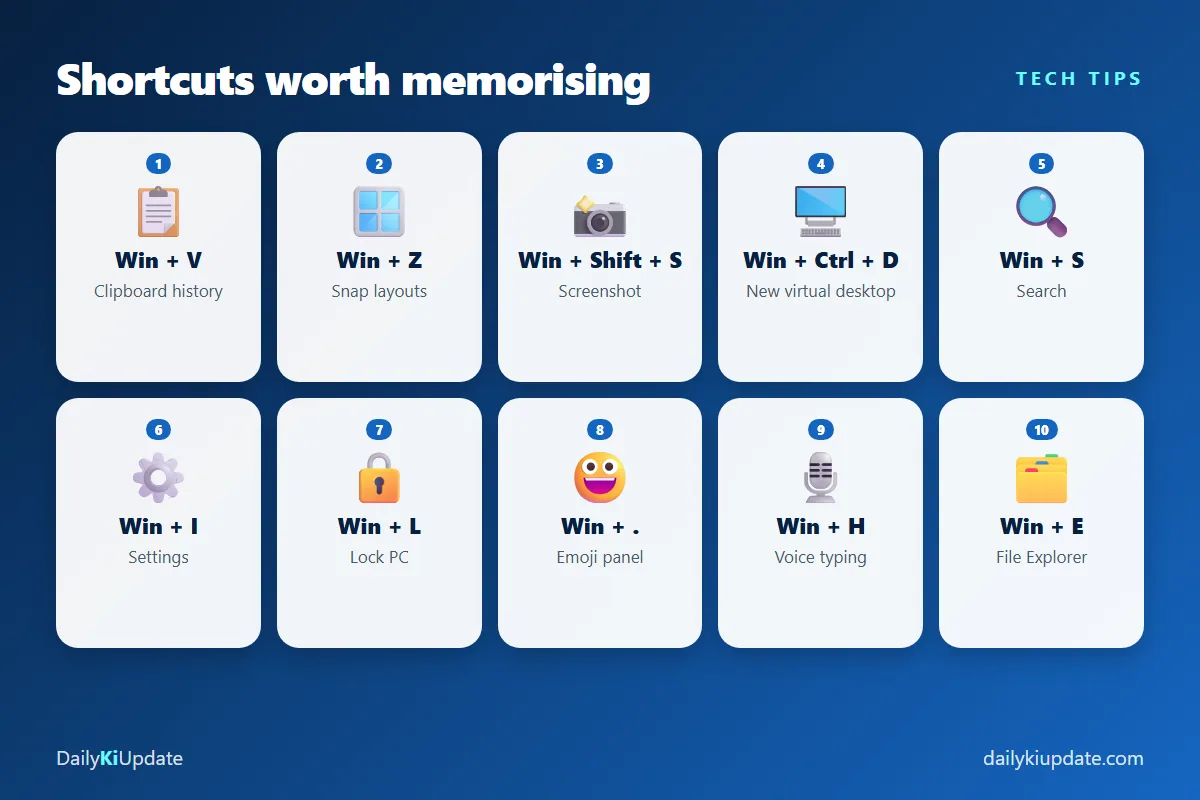
1. Clipboard history: Win + V
Normally you can only paste the last thing you copied. Turn on clipboard history and Windows remembers recent items, so you can copy five things and paste them in any order. You can also pin items you reuse often, like an email address or a reply.
How: press Win + V and click Turn on the first time. Avoid keeping passwords in it, and clear the history if you share your PC.
2. Screenshots: Win + Shift + S
This opens the Snipping Tool overlay. Drag over the area you want, and it is copied to your clipboard, ready to paste into a chat or document. A notification lets you open it to annotate or save. In the Snipping Tool app you can also record your screen as a video.
Plain PrtScn can be set to open the same tool: go to Settings > Accessibility > Keyboard and turn on "Use the Print screen button to open screen capture".
3. Snap layouts: Win + Z
Hover over the maximise button on any window, or press Win + Z, and Windows shows layout options: two windows side by side, three columns, a big window with two small ones. Pick a spot and Windows suggests what to put in the others. You can also drag a window to the edge of the screen.
4. A handful of other shortcuts
Win+E: open File ExplorerWin+S: searchWin+I: SettingsWin+L: lock your PCWin+D: show the desktopWin+.: emoji and symbols panelWin+H: voice typingAlt+Tab: switch between windowsCtrl+Shift+Esc: open Task Manager directly
Multitasking
5. Virtual desktops: Win + Ctrl + D
Virtual desktops give you separate workspaces on the same screen: one for work, one for study, one for entertainment. Create a new one with Win + Ctrl + D, and switch with Win + Ctrl + ← or →. Close one with Win + Ctrl + F4. Your windows stay put in their own desktop, which keeps the clutter away.
6. Snap Groups
When you snap several windows together, Windows remembers them as a group. Hover over one of the apps in the taskbar and you can bring the whole group back at once. It is a handy way to return to a "research + notes" setup after a break.
7. Focus sessions
The Clock app has Focus sessions that combine a timer with Do Not Disturb, so notifications stay quiet while you work. It is a simple way to try the Pomodoro method (25 minutes of work, 5 of rest) without installing anything.
Free power tools from Microsoft
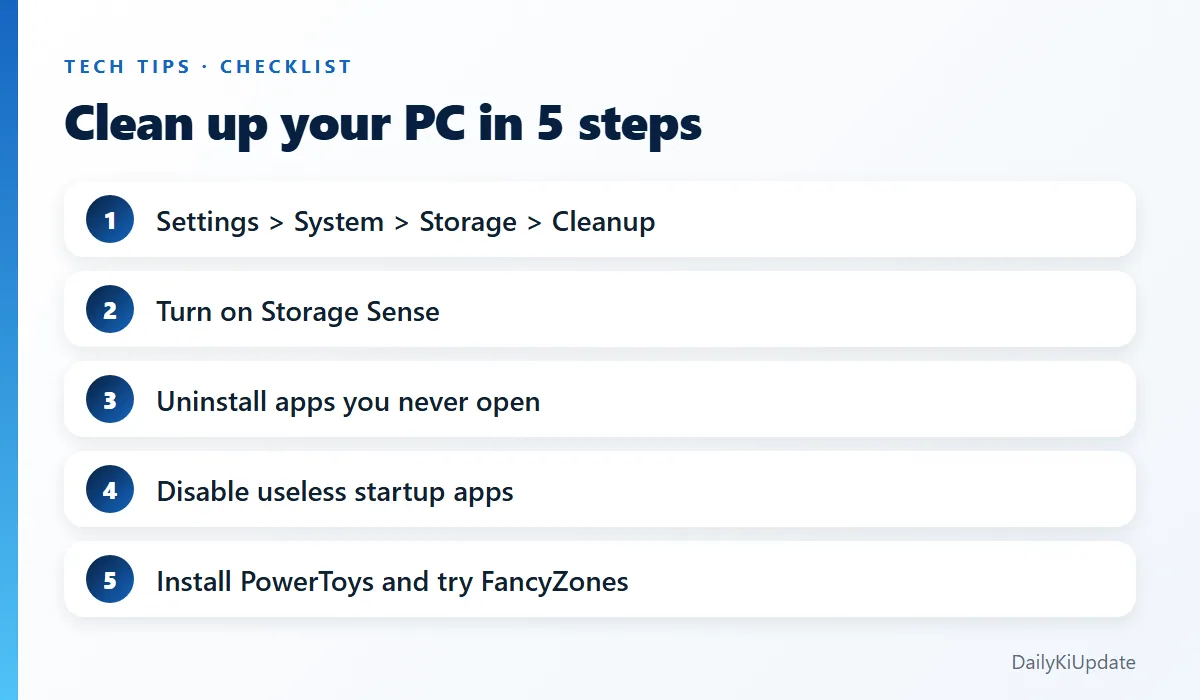
8. PowerToys
PowerToys is a free collection of utilities from Microsoft, available from the Microsoft Store or GitHub. These are the parts most people love:
- FancyZones: design your own window layouts, great for large or ultrawide monitors.
- PowerRename: rename hundreds of files at once with search and replace.
- Color Picker: pick any colour from the screen and copy its code.
- Text Extractor: copy text from images or videos on your screen.
- Always on Top: pin a window above others with a shortcut.
- Command Palette / Run: a fast launcher for apps and files.
Menus and tool names occasionally change between releases, so check the PowerToys documentation for your version.
Storage and performance
9. Clean up storage
Go to Settings > System > Storage. Windows shows what is using your disk: apps, temporary files, downloads and more. Open Cleanup recommendations or Temporary files to remove things you do not need. Read the list before you tick anything. For instance, the Downloads folder may contain files you still want.
10. Turn on Storage Sense
Storage Sense can clear temporary files and empty the Recycle Bin automatically on a schedule. Find it in the same Storage settings and choose how often it runs.
11. Stop apps from starting with Windows
A slow start-up is often caused by too many apps launching at once. Go to Settings > Apps > Startup and switch off the ones you do not need immediately. Leave your security software and drivers alone. If you are not sure what something is, search for its name before disabling it.
Everyday comfort and focus
12. Night light and dark mode
Night light warms your screen colours in the evening, and dark mode is easier on the eyes in dim rooms. Both are in Settings > System > Display and Personalization > Colors. Schedule night light to turn on at sunset.
13. Voice typing: Win + H
Click into any text box, press Win + H and speak. It is surprisingly accurate for emails and notes, and it can add punctuation if you say it. Great when your hands are tired.
14. Quick Settings and Action Centre
Click the network, sound and battery icons in the bottom right (or press Win + A) to reach Wi-Fi, Bluetooth, brightness, battery saver and more in a single panel. You can edit which toggles are shown with the pencil icon.
15. Search smarter with File Explorer and the Start menu
In File Explorer, use search filters like kind:picture, datemodified:this week or ext:pdf to narrow results. In the Start menu, just start typing: it searches apps, files and settings. Pin your most-used apps and folders to Start and the taskbar to cut the clicks.
Security basics you should not skip
- Keep Windows updated. Updates fix security holes.
- Use a PIN or Windows Hello for sign-in, and lock your PC with
Win+Lwhen you walk away. - Use Microsoft Defender or another trusted security app, and avoid downloading software from random sites.
- Back up important files to OneDrive, an external drive or another cloud service.
Frequently asked questions
How do I open clipboard history in Windows 11?
Press Win + V. If it is the first time, click Turn on.
What is the best free tool for Windows 11?
PowerToys. It adds layout management, batch renaming, a colour picker and more, from Microsoft itself.
How do I take a screenshot on Windows 11?
Press Win + Shift + S, select the area, and paste it where you need it. Use Win + PrtScn to save a full-screen image to your Pictures folder.
How can I free up disk space on Windows 11?
Use Settings > System > Storage to clear temporary files, uninstall unused apps, and turn on Storage Sense. Review before you delete.
Will these tips work on Windows 10?
Many shortcuts (Win + V, Win + Shift + S, virtual desktops) work on Windows 10 too, but Snap layouts, the new Settings pages and some features are specific to Windows 11.
Final thoughts
Do not try to memorise all fifteen tips today. Choose three: clipboard history, the screenshot shortcut and Snap layouts. Use them for a week, until they are habit, then add more. If you code on Windows, also take a look at our best VS Code extensions for 2026.
Which Windows trick saved you the most time? Tell us in the comments.