AI coding assistants have gone from a novelty to a normal part of a developer's day. They finish your lines, explain unfamiliar code, write tests, hunt bugs and, in "agent" mode, even edit several files at once. The good news is that you can try most of them for free.
The bad news is that free tiers change constantly. A generous plan in January can be gone by June. So in this guide to the 10 best free AI coding assistants in 2026, I focus on what each one is good at and where the free tier is likely to bite, and I point you to the official pricing pages for current numbers.
Last updated: October 2026. Pricing and limits move fast in this category. Different review sites quote different numbers, so verify on each vendor's own page before you commit.
Quick answer: which free AI coding assistant should you pick?
- Safest all-round pick: GitHub Copilot Free, because it lives inside the editors you already use and has had a permanent free plan since late 2024.
- Want an AI-first editor: Cursor (Hobby plan), Windsurf, or Google Antigravity.
- Want full control and no vendor lock-in: Continue, Cline or Aider with your own model or API key.
- Want to keep code on your machine: Ollama with a local model.
- Just need help now: the free chat plans of ChatGPT, Claude or Gemini.
What "free" really means here
Before the list, understand the four kinds of "free" you will meet:
- Free tier of a paid product (Copilot Free, Cursor Hobby): limited completions and chat requests each month.
- Free preview (some new agent-style IDEs): generous at first, but can change when the preview ends.
- Free and open source, bring your own model: the tool is free, but model API usage may cost money, unless you run a local model.
- Free chatbots: not integrated into your editor, but useful for explanations and snippets.
1. GitHub Copilot Free
Works in: VS Code, Visual Studio, JetBrains IDEs and more.
Good at: inline autocomplete, chat in the editor, explaining code, writing tests and commit messages.
Copilot Free is the most stable option on this list. It is an official GitHub product, it integrates into the editors most developers already use, and the free plan gives you a monthly allowance of code completions and chat or agent requests. Sources commonly cite about 2,000 completions and 50 chat requests a month, but treat those numbers as a snapshot and check GitHub's plan page.
Watch out for: the chat allowance is small if you use it all day. Students and verified open-source maintainers may qualify for more through GitHub's programmes.
2. Google Antigravity
Works in: its own agent-first IDE (a VS Code–style environment).
Good at: agent workflows, where you give a task and the AI plans, edits files, runs commands and reports back.
Antigravity is Google's newer coding environment, and reviews describe it as one of the most capable free options. Several roundups also report that Google ended free individual access to its older Gemini Code Assist IDE plugins in mid-2026 and pointed users towards Antigravity. If you used the old plugin, check the official announcement.
Watch out for: free access can be preview-based and quota-limited for agent features, so do not build your entire workflow on assumptions about it staying the same. Curious about the surrounding ecosystem? See our companion piece on useful tools for Antigravity developers.
3. Cursor (Hobby plan)
Works in: the Cursor editor, a fork of VS Code, so your extensions and settings carry over.
Good at: multi-file edits, "chat with your codebase", and a very smooth AI-first workflow.
Cursor's free Hobby plan lets you experience the editor properly. Reported limits are a few thousand completions and a small number of premium requests each month.
Watch out for: heavy users run out quickly, and premium model requests are the first thing to go.
4. Windsurf
Works in: its own AI-native editor, plus plugins for several IDEs.
Good at: flow-style agent coding, with free autocomplete and a small allowance for agent actions.
Windsurf has changed ownership and branding in recent years, and some 2026 articles mention a rename, so confirm the current product name and free plan on its site before you install.
Watch out for: a free tier that is shaped like a trial for the agent features.
5. Continue (open source)
Works in: VS Code and JetBrains.
Good at: letting you choose the model: a cloud API, or a local model through Ollama.
Continue is the "bring your own AI" option. The extension is free and open source, so you decide which model powers chat, edit and autocomplete. That makes it popular with teams that care about privacy or want to avoid lock-in.
Watch out for: setup takes a few minutes, and if you connect a paid API, you pay for tokens used.
6. Cline
Works in: VS Code.
Good at: agent-style tasks that read your project, edit files and run terminal commands, with your approval at each step.
Cline is free and open source, and you connect your own model provider. The approval step is its biggest strength: you see each file change and command before it runs, which is safer when you are letting an AI loose on a real project.
Watch out for: agent loops can consume a lot of tokens, so watch your API bill.
7. Aider
Works in: your terminal, alongside any editor.
Good at: pair-programming from the command line, editing files in your Git repo and making a commit for each change, which makes every AI edit easy to review or undo.
Watch out for: it is a terminal tool. If you want a point-and-click experience, pick something else. Like Cline, you supply a model.
8. Ollama with local models
Works in: the terminal, and connects to editors via tools like Continue.
Good at: keeping everything on your own computer. No code leaves your machine, there are no monthly limits, and it works offline.
Open-weight coding models have improved enough to be useful for autocomplete and explanations.
Watch out for: quality depends on your hardware. Small models on a basic laptop will be slower and less accurate than the best cloud models.
9. Amazon Q Developer (free tier)
Works in: VS Code, JetBrains and the AWS console.
Good at: AWS-related work: writing infrastructure code, explaining services and debugging cloud issues, plus general code suggestions.
Watch out for: if you do not use AWS, other options will probably suit you better. The free tier has monthly limits on some features.
10. Free chat assistants: ChatGPT, Claude and Gemini
Works in: the browser or app.
Good at: explaining concepts, reviewing a snippet, generating a function, converting between languages and debugging an error message.
You do not always need an editor plugin. Pasting a function and its error into a chat window works well, and the free plans are good enough for occasional use. See our comparison of the best free AI tools, and use the debugging prompts from our AI prompts with examples article.
Watch out for: they cannot see your whole project unless you paste it, and message caps apply.
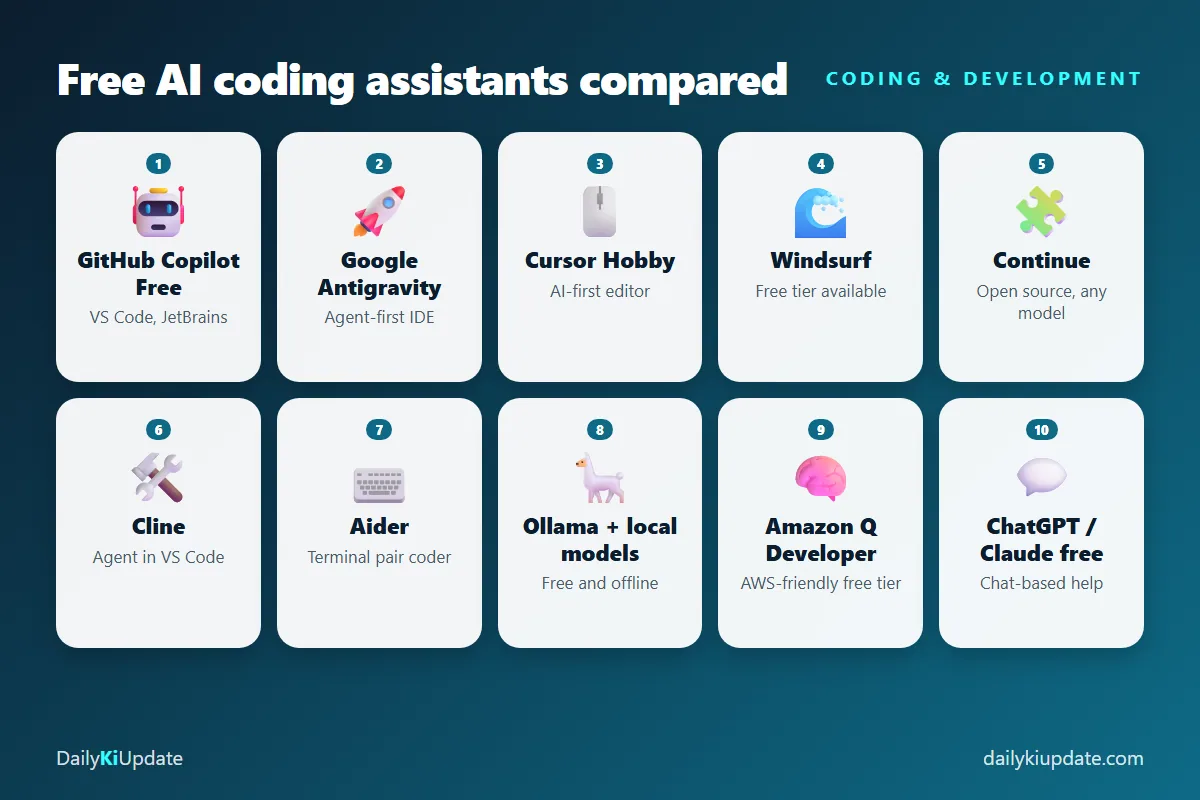
Free AI coding assistants compared
| Tool | Where it runs | Best for | Free-tier catch |
|---|---|---|---|
| GitHub Copilot Free | VS Code, JetBrains | Autocomplete + chat | Monthly caps |
| Google Antigravity | Own IDE | Agent workflows | Preview and quota-based |
| Cursor Hobby | Own editor | Multi-file edits | Few premium requests |
| Windsurf | Own editor, plugins | Flow-style agent | Agent allowance is small |
| Continue | VS Code, JetBrains | Any model, privacy | API costs if cloud model |
| Cline | VS Code | Approved agent tasks | Token costs |
| Aider | Terminal | Git-based pairing | Terminal only, bring model |
| Ollama | Local machine | Offline, private | Needs decent hardware |
| Amazon Q Developer | IDEs, AWS | AWS projects | Monthly limits |
| Free chatbots | Browser | Explain, review, debug | No project context |
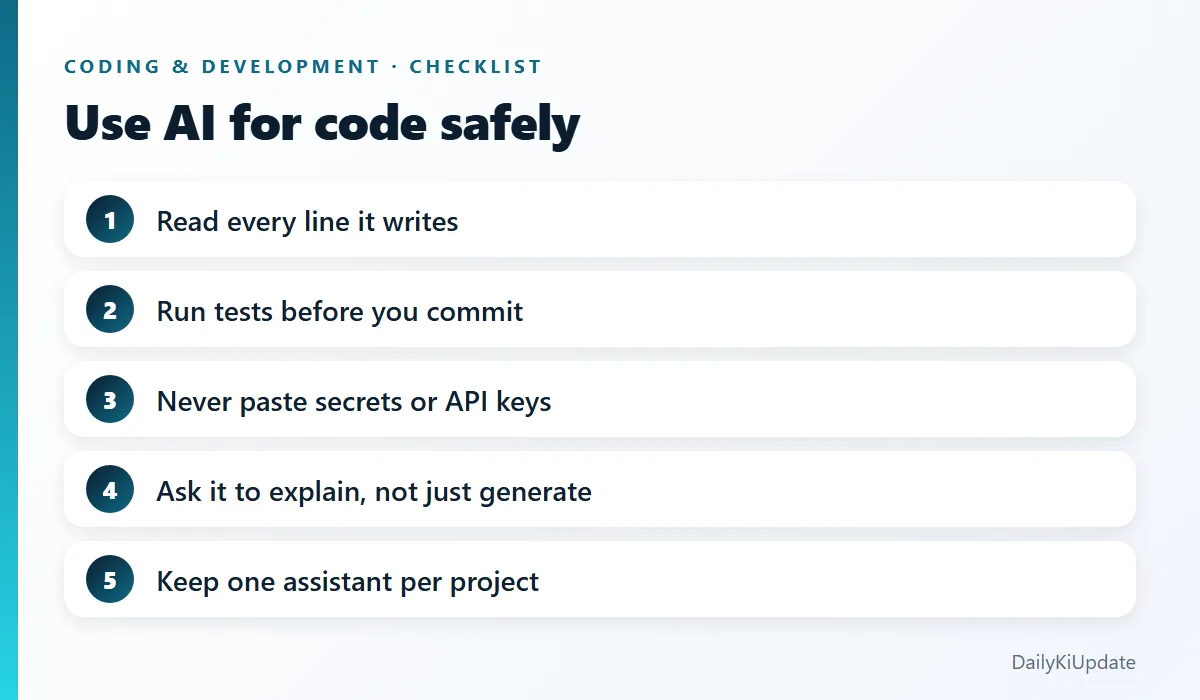
How to use AI coding tools without shooting yourself in the foot
- Review everything. AI code can compile and still be wrong, insecure or needlessly complicated.
- Write tests first, or ask for tests. A failing test tells you more than a confident explanation.
- Protect secrets. Keep API keys and credentials out of prompts and out of files the AI can read. Check your
.envhandling. - Check licences and company policy. Some workplaces restrict which tools you can use on company code.
- Keep learning. If you accept code you do not understand, you will be stuck the day it breaks. Ask the AI to explain, then verify with the docs.
- Use small, specific requests. "Add input validation to this function" works better than "improve my app".
Getting set up quickly in VS Code
If you use VS Code, install one assistant, such as GitHub Copilot, and learn its shortcuts: accept a suggestion with Tab, open inline chat with Ctrl+I, and use the chat panel for bigger questions. For a full toolkit, read our guide to the best VS Code extensions in 2026.
Frequently asked questions
What is the best free AI coding assistant in 2026?
GitHub Copilot Free is the most dependable choice for most developers because it works in popular editors and is offered by GitHub itself. For agent-style coding, try Google Antigravity or Cursor.
Is GitHub Copilot free?
Yes, there is a free plan with monthly limits on completions and chat requests. Heavier use needs a paid plan.
Can I use AI coding tools offline?
Yes. Run a local model with Ollama and connect it to an editor extension such as Continue. Quality depends on your computer.
Are AI coding assistants safe for company code?
It depends on the tool and your employer's policy. Check data-handling terms, and do not use personal free accounts on confidential code without approval.
Will AI replace programmers?
AI changes the work, but it does not remove the need to understand problems, design systems and verify results. Developers who use these tools well tend to move faster.
Final thoughts
Do not try all ten. Pick one editor assistant (Copilot Free is a sensible default), one free chatbot for explanations, and, if you care about privacy, a local model on the side. Use them on a real project for two weeks, then decide whether any paid upgrade is worth it.
Which AI coding assistant is on your machine right now? Let us know in the comments.