Open VS Code fresh out of the box and it is already a good editor. But the developers who seem to fly through their work are almost never using the stock version. They have a handful of extensions that remove small annoyances: messy formatting, silent typos, "who changed this line?", copy-pasting API requests into a browser.
The trouble is the Marketplace has tens of thousands of extensions, and most "best of" lists are just a pile of names. So here is a shorter, more honest list. These are the 10 best VS Code extensions in 2026 that are worth the few seconds it takes to install them, grouped by what they actually do for you: formatting, debugging, Git, AI help, themes and code quality.
Last updated: October 2026. Extension features and pricing change, so I have kept claims general and linked to the official pages.
Quick answer: which extensions should you install first?
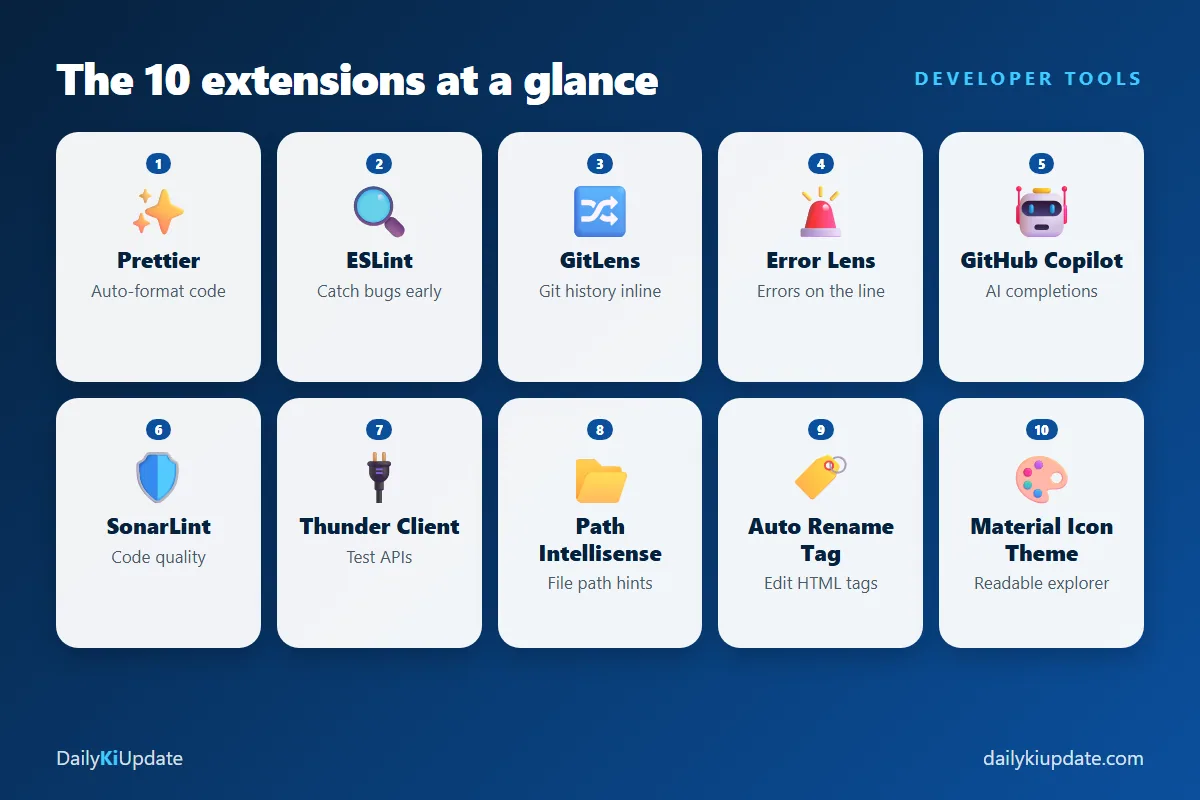
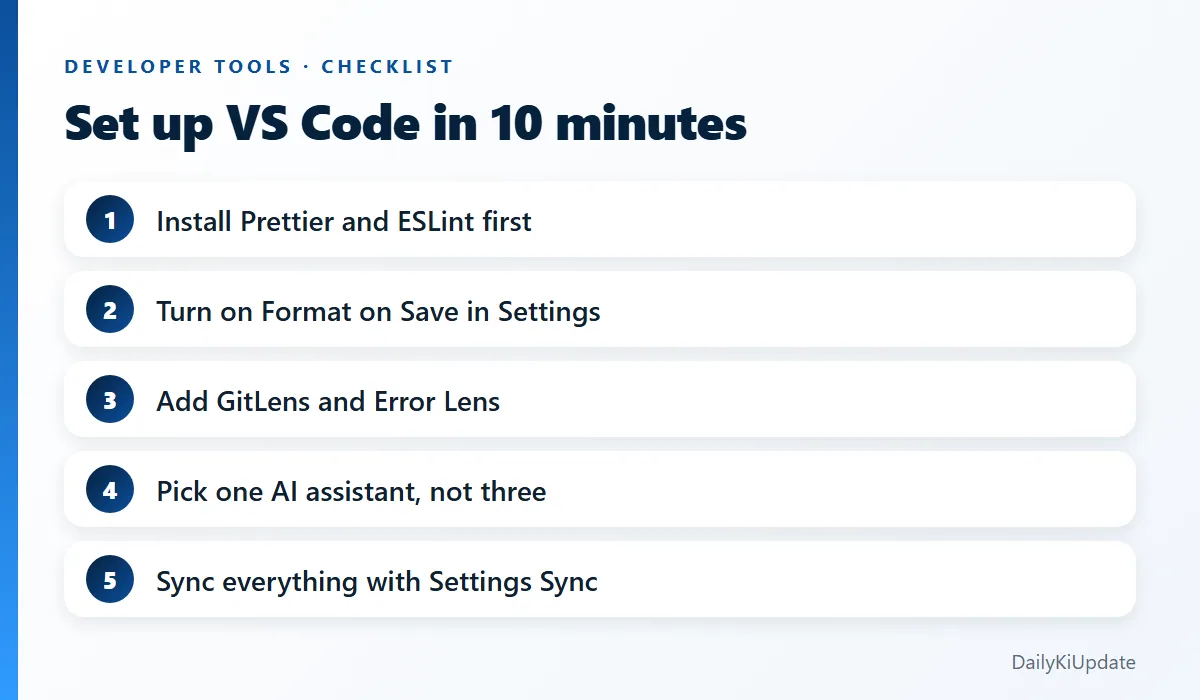
If you only have two minutes, install these four: Prettier, ESLint, GitLens and Error Lens. Almost every roundup of the best VS Code extensions starts with this same core set, and for good reason: they work for nearly every language and every team. Add the rest as you hit a real problem, not before. A bloated editor starts slowly and distracts you.
Formatting and code quality
1. Prettier – Code formatter
Prettier ends the "tabs or spaces" argument forever. You save the file, and it rewrites your code in one consistent style: quotes, line length, indentation, trailing commas. It supports JavaScript, TypeScript, JSON, CSS, HTML, Markdown and more.
Why it matters: in a team, formatting noise makes pull requests hard to review. With Prettier, a diff only shows real changes.
Set it up properly: install it, then open Settings and turn on Format On Save. Set Prettier as your default formatter, or add this to your settings:
{
  "editor.defaultFormatter": "esbenp.prettier-vscode",
  "editor.formatOnSave": true
}
Commit a .prettierrc file to your repo so everyone on the project gets identical output.
2. ESLint
Prettier fixes how code looks. ESLint finds how code behaves: unused variables, missing dependencies in React hooks, accidental assignments in an if, unsafe patterns. Problems are underlined as you type, and many can be fixed automatically.
Tip: you do not have to choose between the two. Let Prettier handle formatting and ESLint handle logic. If you use a modern framework such as Next.js or Vite, ESLint is usually already configured when you create the project.
3. SonarLint
SonarLint is like a second pair of eyes that has read thousands of bug reports. It flags code smells, security hotspots and risky patterns right in the editor, with a short explanation of why something is a problem and how to fix it. That explanation is the real value, especially if you are still learning. It is free for individual use.
Debugging and everyday productivity
4. Error Lens
Normally an error shows up as a red squiggle, and you have to hover to read it. Error Lens prints the message at the end of the line itself. It sounds tiny. After a week you will not want to code without it, because you stop hovering and start fixing.
If it feels too noisy, you can limit it to errors only in its settings and hide warnings and hints.
5. Thunder Client
Thunder Client is a lightweight REST API client that lives inside VS Code. You can send GET, POST, PUT and DELETE requests, save collections, use environment variables and check responses without leaving your editor or opening a separate app. For building or debugging a backend, it saves a surprising number of window switches.
Some features sit behind a paid plan, so check what the free tier covers before you rely on a specific feature. If you prefer something else, the REST Client extension (plain .http files) is a good alternative.
6. Path Intellisense
When you type import Button from "./components/, Path Intellisense autocompletes folders and file names. No more broken imports from a misspelt path, and no more flipping to the file tree to check a name. It is small, quiet and works.
7. Auto Rename Tag
If you write HTML, JSX or Vue, you know the pain of renaming <div> to <section> and forgetting the closing tag. This extension renames the matching tag at the same time. Note that recent VS Code versions have a built-in setting for linked editing (editor.linkedEditing) that covers some of the same ground, so try that first if you want fewer extensions.
Git
8. GitLens
GitLens adds Git superpowers directly to the editor. The headline feature is inline blame: click any line and see who last changed it, when, and in which commit message. You can also browse file history, compare branches and jump to the pull request behind a change.
When you open an old codebase and wonder "why on earth does this work like this?", GitLens often answers in seconds. Some advanced features need a paid plan, but the everyday ones (blame, history, line annotations) are what most people use.
Pair it with the official GitHub Pull Requests extension if you review pull requests without leaving VS Code.
AI coding
9. GitHub Copilot
GitHub Copilot is still the most widely used AI coding extension. It suggests whole lines and functions as you type, answers questions in a chat panel, and its agent mode can make changes across several files. There is a free plan with monthly limits, which is enough to try it properly, and paid plans for heavy use.
A few habits make AI help much safer:
- Read what it writes. Treat suggestions like a pull request from a new teammate.
- Run your tests before you accept a big change.
- Keep secrets out. Never paste API keys, passwords or client data into a prompt.
Want to compare options? Read our guide to the best free AI coding assistants for developers in 2026. Pick one assistant and learn it well; running three at once just produces conflicting suggestions.
Themes and readability
10. Material Icon Theme
A good icon theme makes the file explorer scannable at a glance: package.json, .env, test files and folders all get distinct icons, so you spot the right file faster. Pair it with a theme you can look at for eight hours. Popular choices include One Dark Pro, GitHub Theme and Catppuccin. Pick one with enough contrast, and set a comfortable font size. Your eyes will thank you.
Honourable mentions
- Live Server: instant reload for plain HTML/CSS/JS pages.
- Docker: manage containers and images from the sidebar.
- Remote - SSH: edit files on a server as if they were local.
- Todo Tree: collects every
TODOandFIXMEcomment in one list. - Code Spell Checker: catches typos in variable names and comments.
- Python / Pylance: essential if you write Python.
How to install extensions safely
Extensions run code on your machine, so do a quick check before installing any of them:
- Look for the verified publisher badge and a large install count.
- Read recent reviews and check when it was last updated.
- Check the permissions and what it does. A "theme" that asks for network access is suspicious.
- Use workspace recommendations. For a team repo, add a
.vscode/extensions.jsonfile so new teammates get the right set automatically.
{
  "recommendations": [
    "esbenp.prettier-vscode",
    "dbaeumer.vscode-eslint",
    "eamodio.gitlens",
    "usernamehw.errorlens"
  ]
}
Keep VS Code fast
More extensions are not better. If startup feels slow, open the Command Palette (Ctrl+Shift+P) and run Developer: Show Running Extensions. It lists how long each one takes to activate. Disable or remove anything you do not use. You can also disable an extension for just one workspace instead of everywhere.
And turn on Settings Sync (click the account icon, then Turn on Settings Sync). Your extensions, themes and shortcuts follow you to any new laptop.
Frequently asked questions
What are the best VS Code extensions for beginners?
Start with Prettier, ESLint (for JavaScript), Error Lens, Path Intellisense and a clean theme. These help you write tidy code and understand errors without overwhelming you.
Are VS Code extensions free?
Most are free, including Prettier, ESLint, Error Lens and Material Icon Theme. Some, like GitLens, Thunder Client and GitHub Copilot, have a free tier with paid upgrades. Always check the extension page.
How many extensions is too many?
There is no magic number, but if VS Code feels slow, you probably have too many. Ten to fifteen well-chosen ones is plenty for most people.
Do VS Code extensions slow down my computer?
Some can, especially language servers and heavy analysers. Use Developer: Show Running Extensions to find the slow ones.
Which AI extension is best for VS Code?
GitHub Copilot is the most common starting point, and there are good alternatives. The best one is the one you will actually use consistently, so try the free tiers and decide.
Final thoughts
You do not need fifty extensions to be productive. You need a small, reliable set that fixes the things that annoy you most. Start with Prettier, ESLint, GitLens and Error Lens, add an AI assistant if it suits your workflow, then add tools only when you feel a real pain. Do that, and VS Code stays fast, clean and genuinely useful.
If you are building a bigger toolkit, you may also like our guide to the best free websites to learn coding and build real projects.
Which extension could you not live without? Tell us in the comments.