Some of the most useful things on the internet are not apps you pay for. They are free websites that quietly solve annoying problems: merging two PDFs, converting a file the other person cannot open, cleaning up an essay, or designing a poster in ten minutes.
Here are 15 free websites every student and professional should know. For each one you get what it does, why it is worth bookmarking, and what to watch out for. All have a free version, but some limit features or file sizes, and those limits change. Check the site for today's details.
Last updated: October 2026.
A quick safety note before you upload anything
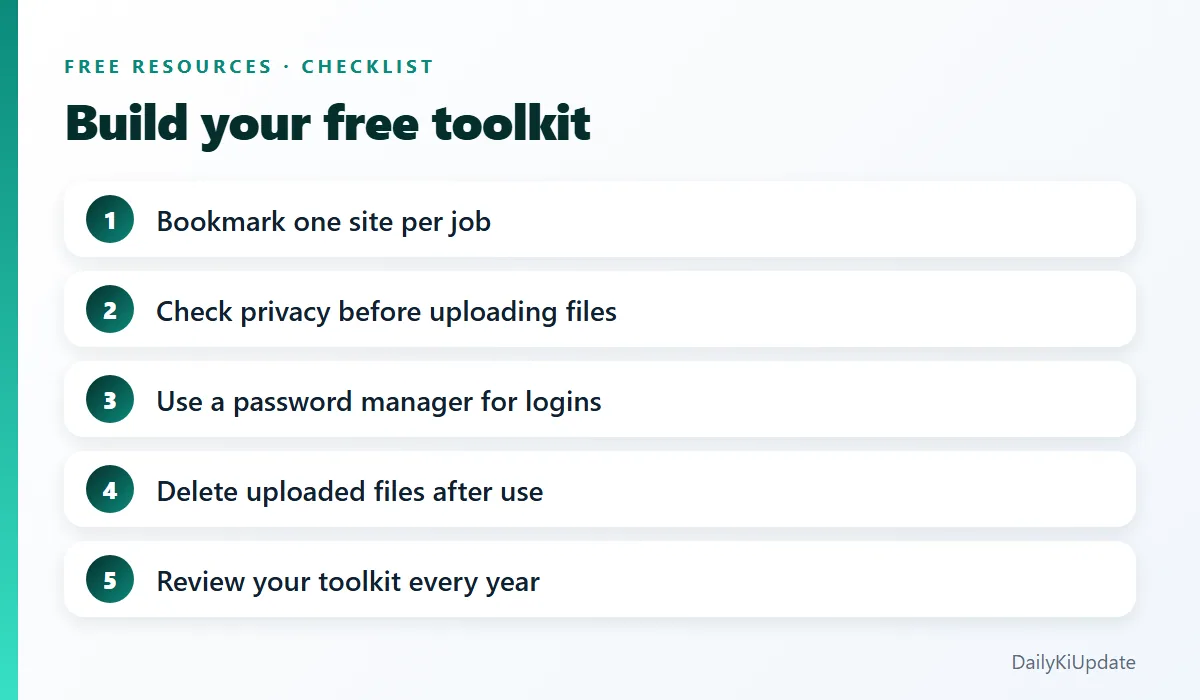
Online tools are convenient, but you are sending your file to someone else's server. For anything sensitive (ID cards, bank statements, contracts, unpublished research), prefer an offline tool or read the site's privacy policy and file-deletion policy first. For everyday files like class notes and flyers, these tools are fine.
PDF and file tools
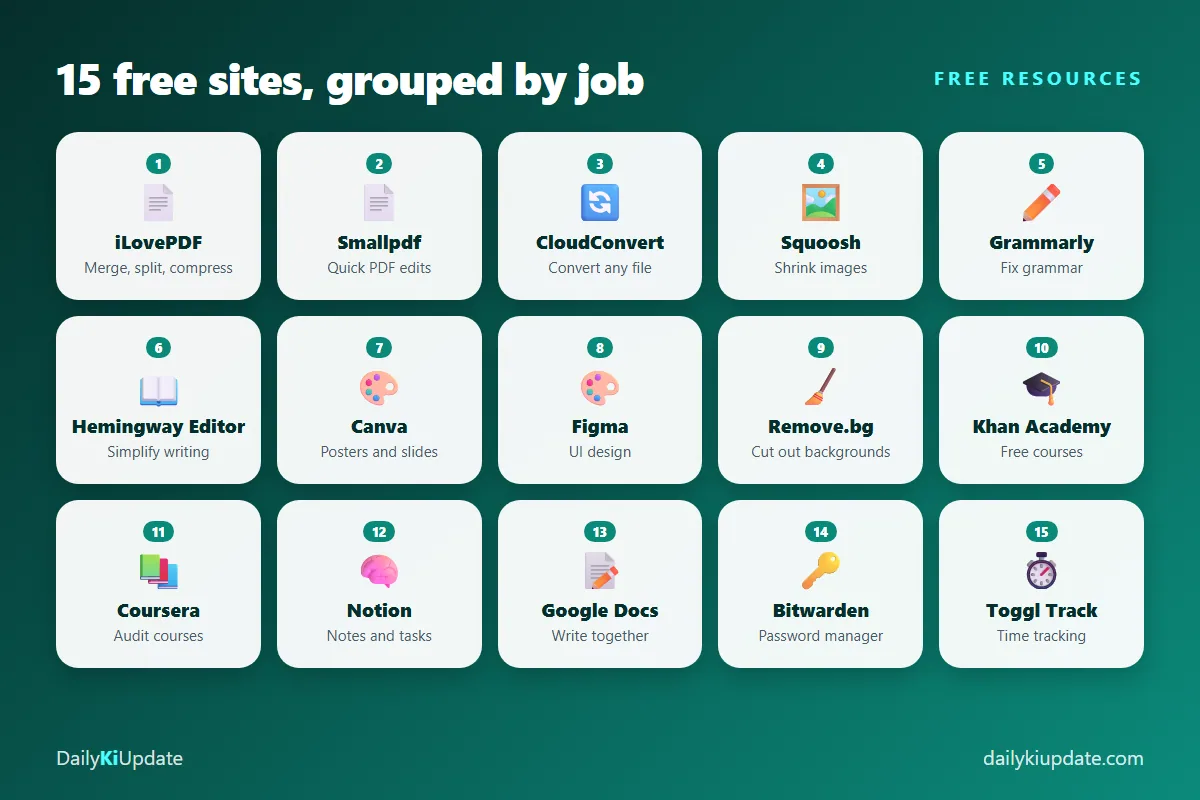
1. iLovePDF
Merge, split, compress, rotate, convert and unlock PDFs from your browser. It is the site many students use for submitting assignments: merge your pages into one PDF, compress it under the upload limit, done. The free plan limits file size and the number of tasks, which is fine for most documents.
2. Smallpdf
A similar set of PDF tools with a clean interface, including e-sign, edit and conversion between PDF, Word and Excel. The free plan has a small daily limit on tasks, so it is handy as a second option when you have hit another tool's cap.
3. CloudConvert
When someone sends a file in a format your computer cannot open, CloudConvert converts between hundreds of formats: documents, images, audio, video and ebooks. The free plan gives a limited number of conversions per day.
4. Squoosh
Made by Google's Chrome team, Squoosh compresses and converts images right in your browser, so your file is not uploaded to a server. You can compare before and after in real time. For bloggers and developers, converting to WebP or AVIF can shrink an image a lot, which helps pages load faster.
Writing and grammar
5. Grammarly
The free version checks spelling, grammar and punctuation as you type, in the browser and in many apps. It is useful for emails, assignments and CVs. Advanced style and tone suggestions need the paid plan. Do not accept every suggestion blindly. Read it and decide.
6. Hemingway Editor
Paste your text and Hemingway highlights long sentences, passive voice and hard-to-read passages. It is a great way to make your writing clearer and shorter. The web version is free to use.
Design and creativity
7. Canva
Presentations, social posts, posters, resumes and videos from ready-made templates. The free plan is generous enough for most students and small creators. Some premium templates, assets and features are paid, and they are marked.
8. Figma
Figma is the standard tool for UI and web design, and the free plan is enough for learning and personal projects. It is also useful for non-designers: wireframes, simple diagrams and clean mock-ups for a presentation. Teams collaborate in real time in the same file.
9. Remove.bg
Upload a photo and get the background removed in seconds. Perfect for profile photos, product images and thumbnails. The free download is usually a lower-resolution version, with full resolution on paid credits. Your exact needs decide if that is enough.
Learning
10. Khan Academy
Free lessons, practice questions and videos in maths, science, economics, computing and test prep. It is a non-profit, with no ads and no paywall. If a topic confused you in class, this is often the clearest explanation.
11. Coursera (audit mode)
Many courses from universities and companies let you "audit" for free, which means you can watch the lectures and read the materials without a certificate or graded assignments. Financial aid is available for some paid certificates. It is a good way to sample a subject before you pay for anything.
Looking to learn to code specifically? See our list of the best free websites to learn coding.
Productivity and organisation
12. Notion
Notes, to-do lists, simple databases and wikis in one place. Students use it for class notes and project trackers, professionals for meeting notes and planning. The personal plan is free, with limits on some collaboration features. It can feel overwhelming at first, so start with one simple page.
13. Google Docs
Write together in real time, comment, suggest edits, and see version history so nothing is lost. If you are still emailing Word files back and forth, switching to a shared doc is one of the easiest productivity wins there is.
14. Bitwarden
A secure, open-source password manager with a free plan that covers unlimited passwords across your devices. Using a unique password for every account is the best habit you can build, and a password manager makes it painless. It is much safer than reusing one password or storing them in a notes app.
15. Toggl Track
A simple timer that shows where your hours really go. Students can use it to see how long they spend on each subject, and freelancers can track client work. The free plan is enough for an individual.
Which website for which problem?
| Problem | Try this |
|---|---|
| Need to merge or shrink a PDF | iLovePDF or Smallpdf |
| File will not open | CloudConvert |
| Image too heavy for a website | Squoosh |
| Essay or email sounds clumsy | Grammarly, Hemingway Editor |
| Need a quick poster or slide | Canva |
| Photo background is messy | Remove.bg |
| Stuck on a school topic | Khan Academy |
| Too many passwords | Bitwarden |
Tips to use free tools wisely
- Use the official site. Fake lookalike sites exist, especially for PDF converters. Type the address or use a trusted bookmark.
- Do not download unknown "installer" files from converter sites. A genuine online tool works in the browser.
- Back up originals before editing or converting.
- Combine tools. For example: write in Google Docs, polish with Hemingway, export to PDF, compress with iLovePDF.
- Add AI where it helps. See our guide to the best free AI tools in 2026.
Frequently asked questions
Are free online PDF tools safe?
Reputable ones are generally fine for ordinary documents, but avoid uploading sensitive files. Check the site's privacy policy to see how long files are stored.
What is the best free website to merge PDFs?
iLovePDF and Smallpdf are the two most popular. Both work in the browser, and both have limits on the free plan.
Is Canva free for commercial use?
Canva's free plan allows commercial use for many free elements, but some assets are paid or have extra licence rules. Read Canva's content licence for your use.
Which free website is best for learning online?
Khan Academy for school subjects, and Coursera in audit mode for university-style courses.
Final thoughts
You do not need to remember all fifteen. Bookmark the five that match the problems you hit most often, and make a "Tools" folder in your browser. The next time a file will not convert or a PDF is too big, you will have the answer in one click.
Know a free site that deserves a spot on this list? Tell us in the comments.