
Making a YouTube video used to mean a camera, a microphone, editing software that cost real money, and a designer for the thumbnail. Today, one person with a laptop can script, voice, edit and publish a decent video using free tools, and many of them now have AI built in.
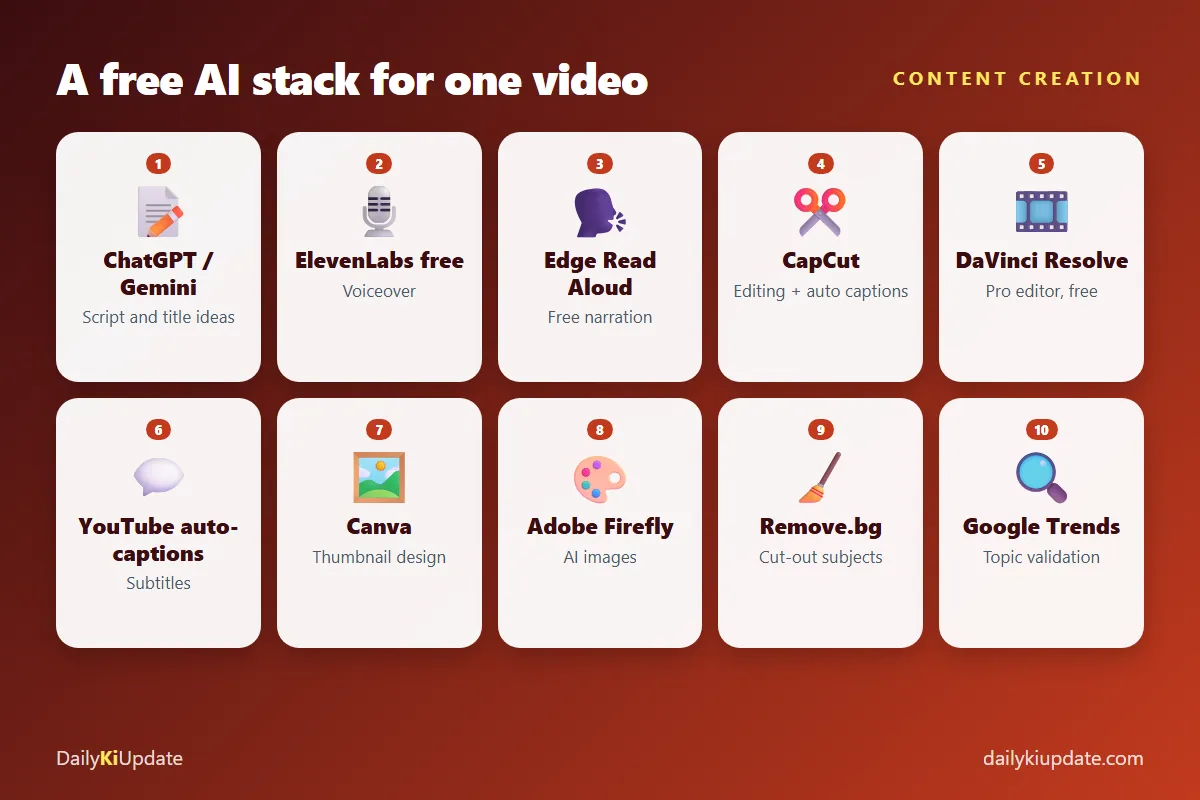
This guide covers the 10 best free AI tools to create YouTube videos, thumbnails and images in 2026, organised in the order you actually make a video: idea, script, voice, edit, subtitles, thumbnail and images. You will also get a simple workflow you can follow for your first video.
Last updated: October 2026. Free plans change, and many tools add watermarks, resolution caps or credit limits on the free tier. I mention the typical catch for each, but check the current plan before you rely on it.
Before you start: use AI as an assistant, not as the creator
YouTube cares about viewers, not about how a video was made. Videos that feel mass-produced, repetitive or misleading tend to do poorly and can run into policy problems. Keep these ground rules in mind:
- Add your own experience, opinion or demonstration. That is what people subscribe for.
- Disclose realistic AI-generated or altered content where the platform asks you to. YouTube has disclosure options for realistic synthetic media, so read the current policy in YouTube Studio.
- Do not clone someone's voice or face without permission.
- Check the licence and commercial-use terms of every asset, image, music track and voice.
Step 1: Find a topic worth making
1. Google Trends
Before you spend hours on a video, check that people are searching for the topic. Google Trends lets you compare keywords, see rising queries and switch the source to YouTube Search, which shows what people look up on YouTube specifically. It is free and needs no account.
Pair it with YouTube's own search suggestions. Type your topic and note the autocomplete phrases, which are real searches.
Step 2: Write the script
2. ChatGPT, Gemini or Claude (free plans)
Use a chatbot to brainstorm title ideas, outline a script and write a hook. Then rewrite it in your own words. Raw AI scripts sound generic. Try this prompt:
You are a YouTube scriptwriter. Video topic: [topic]. Audience:
[beginners]. Length: [8 minutes]. Give me 10 title ideas, then a script
outline with a 15-second hook, 5 main sections, a mid-video retention
moment and a call to action. Keep the tone friendly and simple.
More ready-to-use prompts are in our guide to AI prompts with examples, and you can compare chatbots in best free AI tools in 2026.
Step 3: Add a voiceover
3. ElevenLabs (free plan)
ElevenLabs produces some of the most natural-sounding AI voices. The free plan gives a limited monthly allowance of characters, which is enough for short videos or tests. Check the licence, because free-plan terms about commercial use and attribution can differ from paid plans.
4. Microsoft Edge Read Aloud
The built-in Read Aloud feature in the Edge browser includes high-quality "natural" voices. It is free and quick for drafts or for checking how your script sounds. It is not designed as a production recording tool, so test the quality for your needs.
A tip that beats any AI voice: record your own. A cheap USB microphone, a quiet room and a blanket over your head for sound absorption will often sound more human than synthetic speech.
Step 4: Edit the video
5. CapCut
CapCut is a favourite among creators because it is easy to learn and has AI features such as auto-captions, background removal and templates. The free version is capable, though some effects, templates and exports are locked behind a paid plan, and the terms have changed over time, so check what you get.
6. DaVinci Resolve (free version)
A professional editor and colour-grading suite with a very capable free version. It has a steeper learning curve, and it needs a reasonably strong computer, but you will not outgrow it. Choose it if you plan to take YouTube seriously and want one tool for years.
Step 5: Subtitles
7. YouTube auto-captions (and CapCut captions)
Captions help viewers who watch on mute, people who are hard of hearing, and anyone learning a language. YouTube generates automatic captions for many languages, and you can edit them in YouTube Studio. Always proofread. Names, brand terms and accents trip up automatic captions.
Step 6: Thumbnails and images
8. Canva
Canva has YouTube thumbnail templates at the right size (1280 × 720 pixels), plus tools for text, shapes and AI image features. The free plan is enough to make a clean thumbnail. Good thumbnails usually have:
- One clear subject or face
- Three to five words of large, high-contrast text
- A background that does not compete with the subject
- Text that is readable even at the tiny size shown on a phone
9. Adobe Firefly
Firefly generates images from text prompts and offers features like generative fill and text effects. The free plan has a limited number of monthly credits. Adobe has emphasised training on licensed content, which matters if you worry about commercial use, but read the terms for your plan.
10. Remove.bg
Cut your subject out of its background in seconds, then drop it onto a clean colour in Canva. It is a quick way to get that "pro thumbnail" look. The free download is typically lower resolution, which is often fine for a thumbnail.
Quick comparison
| Stage | Free tool | Typical free-plan catch |
|---|---|---|
| Topic research | Google Trends | None; relative data only |
| Script | ChatGPT, Gemini, Claude | Message limits |
| Voiceover | ElevenLabs, Edge Read Aloud | Character limits, licence terms |
| Editing | CapCut, DaVinci Resolve | Locked effects; heavier PC needs |
| Subtitles | YouTube, CapCut | Needs proofreading |
| Thumbnail | Canva, Remove.bg | Premium assets; lower-res downloads |
| AI images | Adobe Firefly | Monthly credits |
A simple workflow for your first video
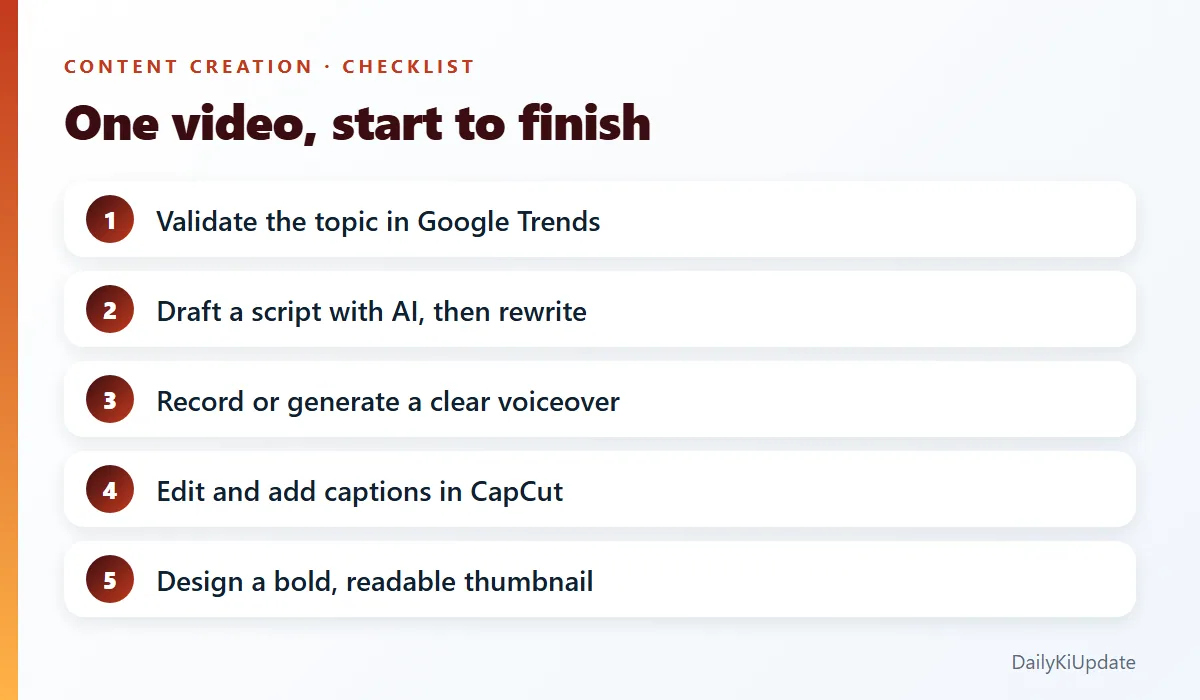
- Pick the topic and validate it in Google Trends. Choose a narrow, specific idea.
- Write the title and thumbnail idea first. If you cannot make it sound interesting in a sentence, change the topic.
- Draft the script with AI, then rewrite it so it sounds like you. Read it out loud.
- Record the voice or generate it, and clean up the noise.
- Edit in CapCut or DaVinci Resolve. Cut pauses, add b-roll or screen recordings, keep a steady pace.
- Add captions and proofread them.
- Design the thumbnail in Canva. Test it at small size.
- Upload with a clear title, helpful description, chapters and a few relevant tags.
Mistakes to avoid
- Copyright music. Use YouTube's Audio Library or music you have a licence for.
- Misleading thumbnails. Clickbait that the video does not deliver on hurts watch time and trust.
- Skipping the hook. The first 15 seconds decide whether people stay.
- Using AI for everything. Viewers can tell. Keep your voice and experience front and centre.
- Ignoring the watermark. A visible tool watermark on a free export looks unprofessional. Check before you publish.
Frequently asked questions
Can I make YouTube videos for free with AI?
Yes. A free stack of Google Trends, a chatbot for scripts, CapCut or DaVinci Resolve for editing, and Canva for thumbnails covers the whole workflow.
What is the best free video editor for YouTube?
CapCut is the easiest to start with. DaVinci Resolve is the most powerful free option, but it takes longer to learn.
What size should a YouTube thumbnail be?
1280 × 720 pixels (16:9), under 2 MB, in JPG, PNG or similar formats. Always check YouTube's current guidance.
Will YouTube demonetise AI-generated videos?
YouTube's policies focus on original, valuable content and on avoiding mass-produced or repetitive uploads. Videos that add real value are fine; low-effort ones are risky. Read the current YouTube Partner Program policies.
Is it legal to use AI images commercially?
It depends on the tool's terms and the content generated. Read the licence for your plan, and avoid generating real people's likenesses or copyrighted characters.
Final thoughts
Do not wait for the perfect equipment. Make one short video this week using the workflow above, publish it, and look at the analytics. Your second video will be better than your first, and your tenth will be better still. The tools are free. The skill is the part you build.
What are you making a video about? Tell us in the comments.