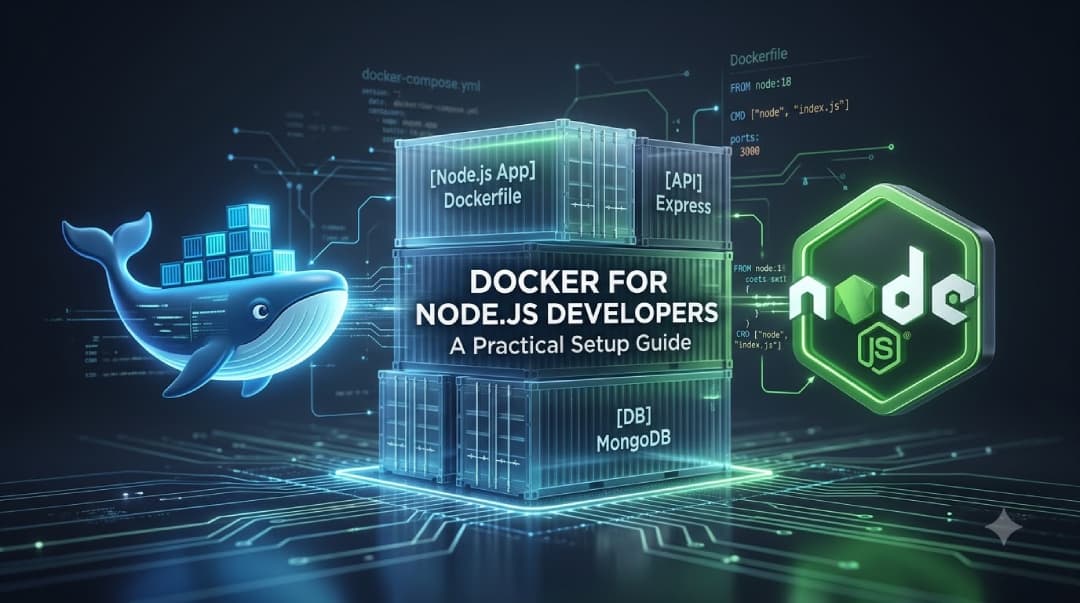
Docker for Node.js Developers: A Practical Setup Guide
If you are building Node.js applications, you will eventually encounter problems related to different Node.js versions, dependency conflicts, local development environments, and deployment configuration.
Docker helps solve many of these problems by allowing you to package your Node.js application together with its runtime environment and dependencies.
In this practical guide, you'll learn how to set up Docker for a Node.js application, create a Dockerfile, use Docker Compose, manage environment variables, optimize images, and prepare your application for production.
What Is Docker?
Docker is a containerization platform that allows applications to run in isolated environments called containers.
A Docker container packages an application with the dependencies and configuration it needs to run.
For a Node.js developer, this can provide a consistent environment across:
Local development
Testing
CI/CD pipelines
Staging
Production
Instead of installing a specific Node.js version directly on every machine, you can define the runtime environment inside a Docker image.
Why Use Docker With Node.js?
Node.js applications often depend on specific versions of Node.js, npm packages, operating-system libraries, and environment variables.
Docker can help make these environments more consistent.
Common benefits include:
Consistent development environments
Easier deployment
Isolated application dependencies
Reproducible builds
Simplified CI/CD
Easier local database setup
Better separation between services
For example, one developer might use Node.js 20 while another uses Node.js 22. A Dockerfile can define the Node.js version used by the project.
Prerequisites
Before starting, you should have:
Basic Node.js knowledge
A Node.js project
Basic command-line knowledge
Docker Desktop on Windows or macOS, or Docker Engine on Linux
You can verify Docker is installed by running:
docker --version
You can also check whether Docker is running with:
docker info
Create a Simple Node.js Application
Suppose your project has the following structure:
node-docker-app/
├── package.json
├── package-lock.json
├── server.js
└── Dockerfile
A simple server.js file could look like this:
const http = require("http");

const PORT = process.env.PORT || 3000;

const server = http.createServer((req, res) => {
  res.writeHead(200, {
    "Content-Type": "text/plain",
  });

  res.end("Hello from Node.js and Docker!");
});

server.listen(PORT, () => {
  console.log(`Server running on port ${PORT}`);
});
Your package.json can contain a start script:
{
  "scripts": {
    "start": "node server.js"
  }
}
Create Your First Dockerfile
Create a file named Dockerfile in the root directory of your Node.js project.
A basic Dockerfile looks like this:
FROM node:22-alpine

WORKDIR /app

COPY package*.json ./

RUN npm ci

COPY . .

EXPOSE 3000

CMD ["npm", "start"]
Let's understand each instruction.
FROM
FROM node:22-alpine
This specifies the base image.
The node:22-alpine image provides Node.js 22 on an Alpine Linux base.
WORKDIR
WORKDIR /app
This sets /app as the working directory inside the container.
COPY
COPY package*.json ./
This copies the package manifest files into the container.
Install Dependencies
RUN npm ci
npm ci installs dependencies using the lockfile and is commonly preferred for reproducible application builds.
Copy Application Code
COPY . .
This copies the remaining project files into the image.
EXPOSE
EXPOSE 3000
This documents that the application listens on port 3000.
It does not publish the port by itself.
CMD
CMD ["npm", "start"]
This defines the default command used when the container starts.
Build the Docker Image
From your project directory, run:
docker build -t node-docker-app .
Docker will read the Dockerfile and create an image named node-docker-app.
You can view your local images with:
docker images
Run the Node.js Container
Start the container with:
docker run -p 3000:3000 node-docker-app
The first 3000 is the port on your computer.
The second 3000 is the port inside the container.
You can now open:
http://localhost:3000
You should see:
Hello from Node.js and Docker!
Use a .dockerignore File
You should normally avoid copying unnecessary files into your Docker image.
Create:
.dockerignore
Example:
node_modules
npm-debug.log
.git
.gitignore
.env
Dockerfile
README.md
The exact contents should match your project and build requirements.
A .dockerignore file can reduce build context size and prevent unnecessary or sensitive files from being copied into the image.
Docker Compose for Node.js
A Node.js application often depends on other services such as:
PostgreSQL
MySQL
Redis
MongoDB
Docker Compose makes it easier to run multiple containers together.
For example:
services:
  app:
    build: .
    ports:
      - "3000:3000"
    environment:
      NODE_ENV: development
      PORT: 3000
Save this as:
compose.yaml
Start the application with:
docker compose up
To run it in the background:
docker compose up -d
Stop the services with:
docker compose down
Node.js and PostgreSQL With Docker Compose
A more realistic development setup might contain both a Node.js application and PostgreSQL.
Example:
services:
  app:
    build: .
    ports:
      - "3000:3000"
    environment:
      NODE_ENV: development
      PORT: 3000
      DATABASE_URL: postgresql://app:password@db:5432/appdb
    depends_on:
      - db

  db:
    image: postgres:17
    environment:
      POSTGRES_USER: app
      POSTGRES_PASSWORD: password
      POSTGRES_DB: appdb
    volumes:
      - postgres_data:/var/lib/postgresql/data

volumes:
  postgres_data:
Notice that the application connects to the database using:
db
rather than:
localhost
Inside a Docker Compose network, services can communicate using their service names.
Environment Variables
Avoid hardcoding secrets directly inside your Dockerfile.
For example, instead of putting database credentials directly into application code, use environment variables.
Your Node.js application can access them using:
const databaseUrl = process.env.DATABASE_URL;
For local development, you might use an environment file.
However, sensitive production credentials should be managed using an appropriate secret-management solution rather than committed to Git.
Never commit passwords, API keys, private tokens, or production credentials to your repository.
Development vs Production Docker Images
The Docker setup you use during development does not always need to be identical to the production setup.
During development, you may want:
Source-code mounting
Automatic reload
Debugging
Development dependencies
Production images generally benefit from:
Smaller image size
Only required dependencies
Production environment variables
Non-root execution where appropriate
Multi-stage builds
Multi-Stage Docker Builds
Multi-stage builds allow you to use separate stages for building and running an application.
For example:
FROM node:22-alpine AS builder

WORKDIR /app

COPY package*.json ./

RUN npm ci

COPY . .

RUN npm run build


FROM node:22-alpine AS production

WORKDIR /app

ENV NODE_ENV=production

COPY package*.json ./

RUN npm ci --omit=dev

COPY --from=builder /app/dist ./dist

EXPOSE 3000

CMD ["node", "dist/server.js"]
This approach can help keep the final image smaller by excluding files and dependencies that are only required during the build process.
The exact Dockerfile depends on your Node.js framework and build process.
Docker Health Checks
For production applications, health checks can help determine whether an application is responding correctly.
For example:
HEALTHCHECK --interval=30s --timeout=5s --start-period=10s --retries=3 \
  CMD node -e "require('http').get('http://localhost:3000/health', res => process.exit(res.statusCode === 200 ? 0 : 1)).on('error', () => process.exit(1))"
Your application should expose a health endpoint such as:
GET /health
The endpoint can return a simple successful response when the application is healthy.
Useful Docker Commands for Node.js Developers
Build an image
docker build -t my-node-app .
Run a container
docker run -p 3000:3000 my-node-app
List running containers
docker ps
List all containers
docker ps -a
Stop a container
docker stop <container-id>
Remove a container
docker rm <container-id>
View logs
docker logs <container-id>
Open a shell inside a container
docker exec -it <container-id> sh
List images
docker images
Remove an image
docker rmi <image-id>
Start Docker Compose
docker compose up
Stop Docker Compose
docker compose down
Common Docker Problems in Node.js Projects
Port Already in Use
If port 3000 is already being used, map a different host port:
docker run -p 4000:3000 node-docker-app
You can then access the application at:
http://localhost:4000
node_modules Problems
Do not blindly copy your local node_modules directory into the image.
Use .dockerignore:
node_modules
Then install dependencies inside the container.
Environment Variables Not Available
Check how variables are passed to the container.
For example:
docker run -p 3000:3000 -e NODE_ENV=production node-docker-app
Application Cannot Connect to Database
When using Docker Compose, use the database service name instead of localhost.
For example:
postgresql://app:password@db:5432/appdb
rather than:
postgresql://app:password@localhost:5432/appdb
Docker Best Practices for Node.js Developers
Follow these practices when containerizing Node.js applications:
Use a suitable official Node.js base image.
Pin the Node.js version intentionally.
Use
npm ciwhen building from a lockfile.Add a
.dockerignorefile.Avoid copying secrets into images.
Keep production images as small as practical.
Use multi-stage builds when they provide a useful separation.
Run containers with appropriate permissions.
Use environment variables for configuration.
Keep Dockerfiles simple and maintainable.
Regularly update dependencies and base images.
Test the production container before deployment.
Docker for Node.js: Development Workflow
A typical workflow can look like this:
Write Node.js Code
       ↓
Create Dockerfile
       ↓
Build Docker Image
       ↓
Run Container
       ↓
Test Application
       ↓
Run Automated Tests
       ↓
Build Production Image
       ↓
Deploy
Docker can become especially useful when your team uses CI/CD because the same container image can move through different environments with fewer differences in runtime configuration.
Docker vs Installing Node.js Directly
Both approaches can be useful.
Installing Node.js directly is often simpler for small projects and quick local development.
Docker becomes more useful when you need:
Consistent environments
Multiple services
Reproducible builds
CI/CD integration
Environment isolation
Container-based deployment
The right approach depends on the project's requirements and team workflow.
Frequently Asked Questions
Is Docker necessary for Node.js development?
No. Node.js applications can be developed without Docker. Docker is useful when you need consistent environments, isolated services, reproducible builds, or container-based deployment.
Which Node.js Docker image should I use?
The appropriate image depends on your application and requirements. Official Node.js images provide several variants, including smaller Alpine-based images. Evaluate compatibility, security, image size, and operational requirements before choosing one.
Should I use npm install or npm ci in Docker?
For reproducible builds based on a committed lockfile, npm ci is generally the appropriate choice.
Should node_modules be copied into a Docker image?
Generally, you should not copy your local node_modules directory into the image. Add it to .dockerignore and install dependencies during the image build.
Can Docker run Node.js and PostgreSQL together?
Yes. Docker Compose can define multiple services, such as a Node.js application and PostgreSQL database, and connect them through the Compose network.
Is Docker useful for production Node.js applications?
Yes. Containers can provide a consistent runtime and deployment unit. However, production containerization also requires appropriate security, monitoring, resource management, networking, and deployment practices.
Conclusion
Docker provides Node.js developers with a practical way to create consistent and reproducible application environments.
A basic setup starts with a Dockerfile, a Node.js base image, dependency installation, application code, and a container port. As your application grows, Docker Compose, environment variables, multi-stage builds, health checks, and production-focused images can help create a more structured deployment workflow.
If you are developing Node.js applications professionally, understanding Docker is a valuable addition to your backend and deployment toolkit.