Core Web Vitals: How to Improve LCP, INP and CLS for Better SEO and User Experience
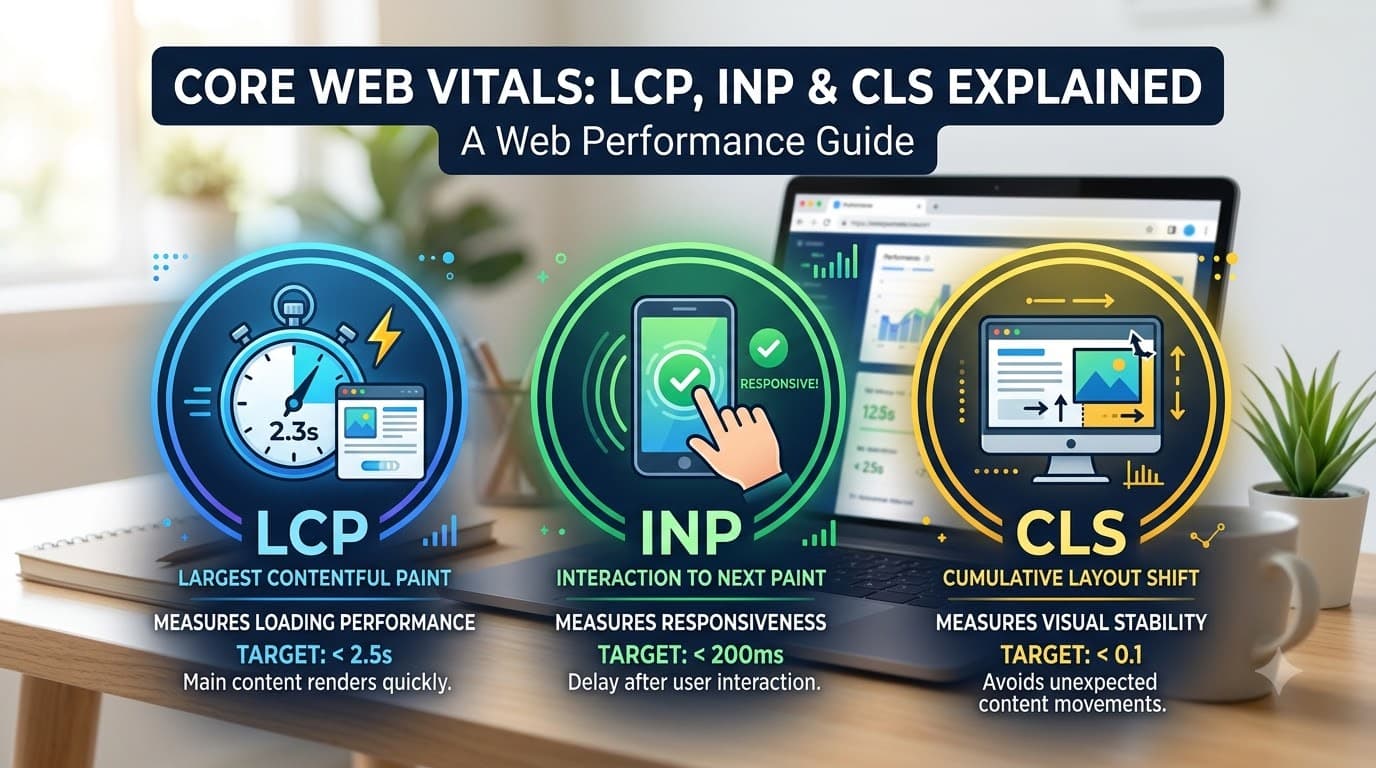
Core Web Vitals are important website performance metrics that help measure how users actually experience a web page. Largest Contentful Paint (LCP), Interaction to Next Paint (INP), and Cumulative Layout Shift (CLS) focus on loading performance, responsiveness, and visual stability.
Unlike simple page-load measurements, Core Web Vitals are designed to reflect real user experience. For website owners, developers, and SEO professionals, improving these metrics can help create faster, smoother, and more stable websites.
What Are Core Web Vitals?
Google's Core Web Vitals consist of three primary user-experience metrics:
LCP (Largest Contentful Paint) – Measures loading performance.
INP (Interaction to Next Paint) – Measures how quickly a page responds to user interactions.
CLS (Cumulative Layout Shift) – Measures visual stability.
Together, these metrics answer three important questions:
Does the page load quickly?
Does it respond quickly when users interact with it?
Does the page remain visually stable while loading?
A website can have a fast initial load and still provide a poor experience if its buttons respond slowly or content unexpectedly moves around the screen.
LCP: How to Improve Largest Contentful Paint
Largest Contentful Paint (LCP) measures how long it takes for the largest visible content element in the viewport to render.
The LCP element is often:
A hero image
A large heading
A featured image
A video poster
A large block of text
A slow LCP is commonly caused by large images, slow server responses, render-blocking resources, or inefficient frontend code.
Common Causes of Poor LCP
Some common causes include:
Unoptimized hero images
Slow server response time
Render-blocking CSS and JavaScript
Too many third-party scripts
Poor caching
Large fonts and other above-the-fold resources
Preload Important Hero Images
If the hero image is critical to the initial viewport, it can be prioritized so that the browser discovers it earlier:
<link rel="preload" as="image" href="/hero.webp" fetchpriority="high" />
In Next.js, next/image can help optimize images automatically. For an above-the-fold image, you can prioritize it:
<Image
  src="/hero.webp"
  alt="Website hero image"
  width={1200}
  height={630}
  priority
/>
You should avoid prioritizing every image on the page. The goal is to help the browser load the genuinely important above-the-fold content first.
Other Ways to Improve LCP
You can also improve LCP by:
Compressing large images
Using modern formats such as WebP or AVIF
Reducing server response time
Using a CDN
Removing unnecessary render-blocking resources
Reducing unused CSS and JavaScript
Optimizing fonts
Caching static resources
INP: How to Improve Interaction to Next Paint
Interaction to Next Paint (INP) measures how quickly a webpage responds visually after a user interacts with it.
Interactions can include:
Clicking a button
Opening a menu
Typing into a search field
Selecting a filter
Adding an item to a cart
Opening a modal
Long-running JavaScript tasks are one of the common causes of poor interaction responsiveness.
The Problem With Long JavaScript Tasks
Consider a page that performs a large amount of synchronous processing:
items.forEach((item) => expensiveTransform(item));
If this operation takes a long time, the browser's main thread can become busy. During that period, user interactions may feel delayed.
Break Long Tasks Into Smaller Chunks
One approach is to process large workloads in smaller chunks and give the browser opportunities to handle user input:
async function processInChunks(items) {
  for (let i = 0; i < items.length; i += 50) {
    items
      .slice(i, i + 50)
      .forEach(expensiveTransform);

    await new Promise((resolve) => setTimeout(resolve, 0));
  }
}
Breaking a long task into smaller pieces can allow the browser to respond to interactions between chunks.
Other Ways to Improve INP
Developers can improve INP by:
Reducing JavaScript execution
Splitting large JavaScript bundles
Avoiding unnecessary React re-renders
Using memoization where appropriate
Optimizing event handlers
Deferring non-critical work
Removing unnecessary third-party scripts
Virtualizing very large lists
Moving expensive processing away from the main thread when appropriate
For React and Next.js applications, it is especially useful to identify components that trigger unnecessary renders or perform expensive calculations during user interactions.
CLS: How to Improve Cumulative Layout Shift
Cumulative Layout Shift (CLS) measures unexpected movement of content while a page is loading.
For example, imagine a user is about to click a button. An advertisement or image loads above the button and pushes it downward. The user may accidentally click something else.
This creates a poor user experience.
Common Causes of CLS
Common causes include:
Images without reserved dimensions
Ads without reserved space
Dynamically inserted content
Web fonts changing the layout
Embeds without predefined dimensions
UI elements being injected above existing content
Set Image Dimensions
Always reserve the appropriate space for images.
For example:
<img
  src="/hero.webp"
  width="1200"
  height="630"
  alt="Website hero"
/>
With CSS, aspect-ratio can also help reserve space:
.hero-image {
  aspect-ratio: 1200 / 630;
  width: 100%;
}
Next.js's Image component also helps establish image dimensions:
<Image
  src="/hero.webp"
  alt="Website hero"
  width={1200}
  height={630}
/>
Reserve Space for Ads and Embeds
If your website displays advertisements, videos, social media embeds, or other dynamically loaded content, reserve the required space before the content loads.
This prevents existing content from unexpectedly moving.
Optimize Web Fonts
Fonts can also contribute to layout changes when fallback fonts are replaced after the page starts rendering.
Depending on your setup, you can use appropriate font-loading strategies such as font-display, preload critical fonts when justified, and reduce unnecessary font variants.
Core Web Vitals Targets
For a good user experience, the commonly used thresholds are:
Metric | Good | Needs Improvement | Poor |
|---|---|---|---|
LCP | ≤ 2.5s | 2.5s–4s | > 4s |
INP | ≤ 200ms | 200ms–500ms | > 500ms |
CLS | ≤ 0.1 | 0.1–0.25 | > 0.25 |
These thresholds provide practical targets for developers when evaluating website performance.
Real User Data vs Lighthouse Scores
One important distinction is the difference between field data and lab data.
Tools such as Lighthouse and PageSpeed Insights can run controlled performance tests and provide useful diagnostics. However, real users may experience a website differently depending on their device, network, browser, location, and other conditions.
Field data collected from real users provides a more representative picture of actual website experience.
Chrome UX Report (CrUX) data can be used to understand real-world performance for eligible websites. Google Search Console also provides a Core Web Vitals report that can help website owners identify URLs with performance issues.
Therefore, don't focus only on achieving a perfect Lighthouse score. Look at how real users experience your website as well.
How Core Web Vitals Affect SEO
Core Web Vitals are part of Google's page experience signals and can contribute to how Google evaluates the experience provided by a page.
However, Core Web Vitals should not be treated as a replacement for quality content, search relevance, technical SEO, or other ranking considerations.
A technically fast website still needs useful, relevant, and accessible content to perform well in search.
The practical goal should therefore be:
Improve performance without sacrificing content quality or usability.
Core Web Vitals Checklist
Use this checklist when optimizing a website:
LCP Checklist
Optimize hero images
Use WebP or AVIF where appropriate
Prioritize important above-the-fold images
Improve server response time
Reduce render-blocking resources
Use caching and a CDN
Remove unnecessary third-party scripts
INP Checklist
Reduce long JavaScript tasks
Optimize event handlers
Avoid unnecessary component re-renders
Split large bundles
Defer non-critical JavaScript
Optimize expensive calculations
Virtualize large lists when appropriate
CLS Checklist
Set image dimensions
Reserve space for advertisements
Reserve space for embeds
Avoid inserting content above existing content
Optimize font loading
Use stable layouts during page initialization
How to Check Core Web Vitals
Website owners can monitor Core Web Vitals using tools such as:
Google Search Console
PageSpeed Insights
Chrome DevTools
Lighthouse
Chrome UX Report
Start with real-user data when available, then use lab tools to diagnose the underlying problems.
Final Takeaway
LCP, INP, and CLS measure three different but connected parts of the web experience.
LCP focuses on how quickly important content appears.
INP focuses on how quickly the page responds to user interactions.
CLS focuses on whether the page remains visually stable.
Many performance problems can be traced back to a few common areas: unoptimized above-the-fold content, excessive JavaScript work, and content without reserved space.
By optimizing images, reducing long main-thread tasks, and creating stable layouts, developers can make websites faster, more responsive, and easier to use.
For SEO, don't optimize Core Web Vitals in isolation. Combine technical performance improvements with high-quality content, strong information architecture, accessibility, and a good overall user experience.